

Confirming transactions with the security key
We’ll guide you through it step by step
With the security key, you can not only log in securely to Internet Banking, but also confirm your transactions. These may include payment transactions, changes to your debit card limit, or updates to personal details such as an address change.
You don’t need a smartphone or the app. You van simply log in using the security key together with your PIN to confirm your transactions. We’ll explain how it works.
Confirming transactions with the security key
01 - Insert the security key

Insert the security key into your computer.
02 - Confirm with your security key
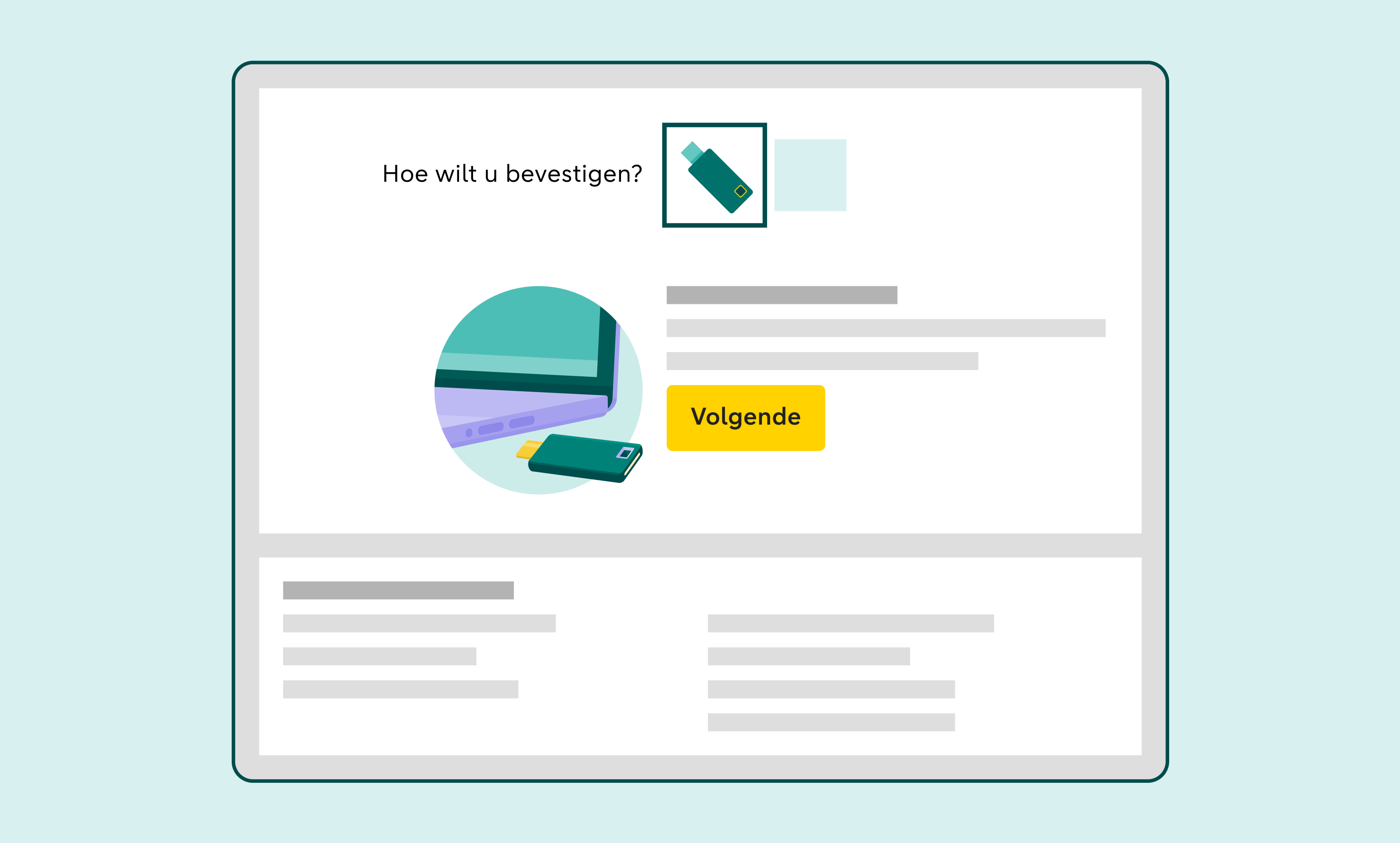
Click Confirm with your security key and then click Next.
03 - Touch your security key
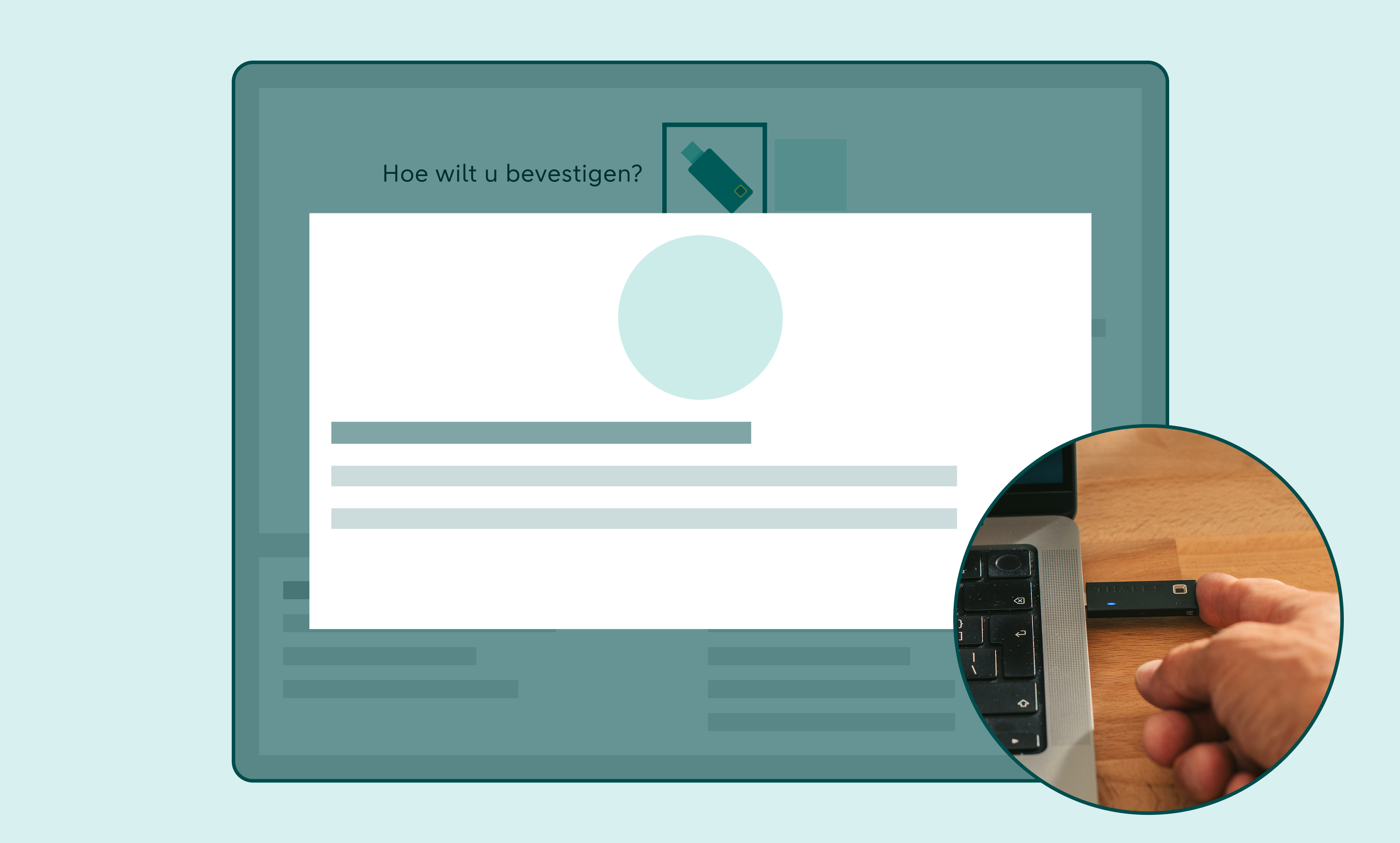
A window will appear on your screen. Touch the back of your security key.
04 - Enter your PIN
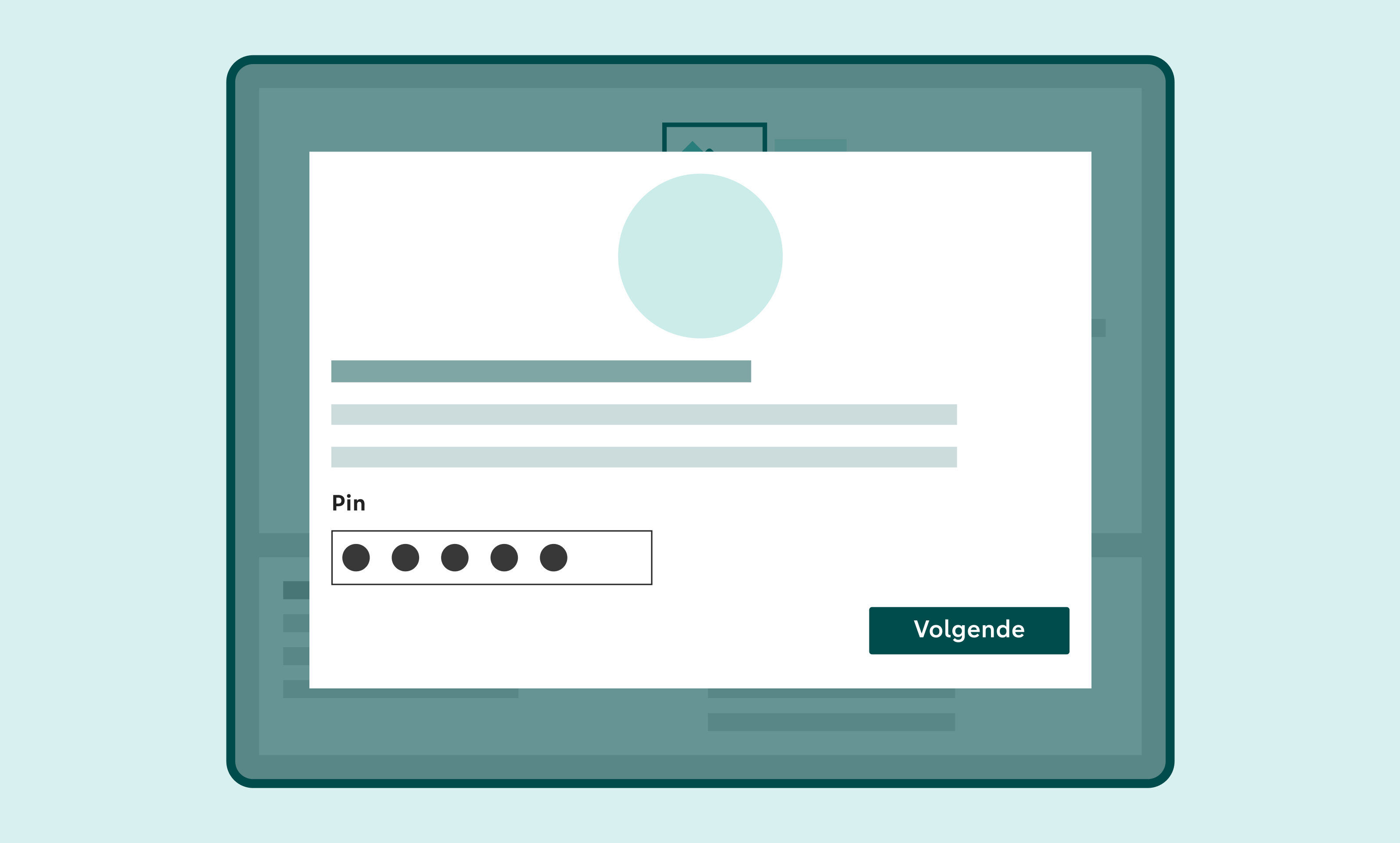
Enter your security key Pin. This is the PIN you chose when registering the security key. Then click Next.
05 - Touch your security key again
Touch your security key once more to complete the transaction.
06 - Done!
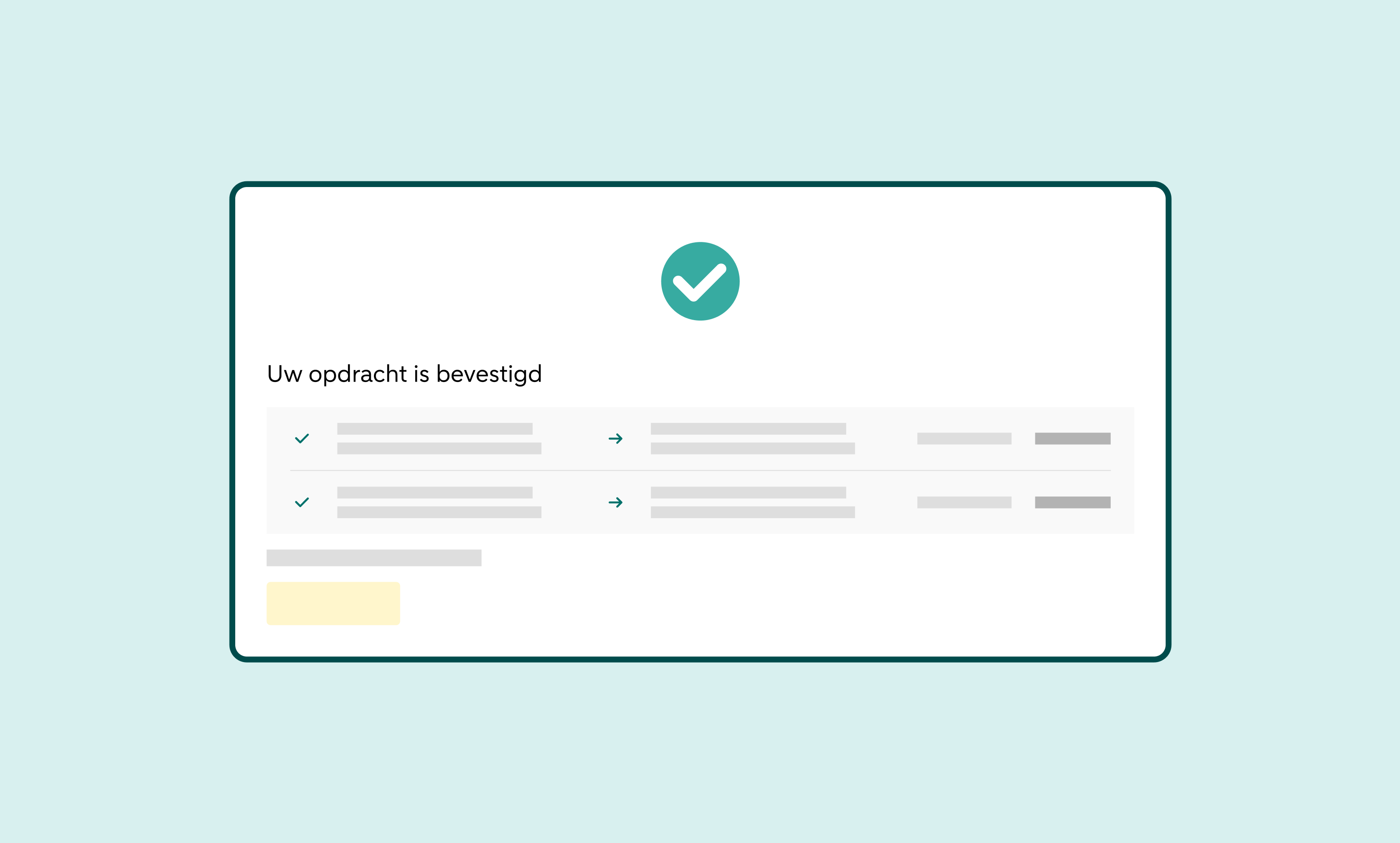
The window will disappear and your transaction is confirmed.
This might also be of interest to you

Do you need help?
Chatbot Anna

Chat with chatbot Anna. Does she not succeed in solving your problem? Then a member of staff will take over the conversation. Here's how it works.
Direct answer
Call us

See all telephone numbers and opening hours.
Please be aware there will be a waiting time
Chatbot Anna
Chat with chatbot Anna. Does she not succeed in solving your problem? Then a member of staff will take over the conversation. Here's how it works.
Direct answer
Call us
See all telephone numbers and opening hours.
Please be aware there will be a waiting time