
Managing payment templates
Payment templates let you save the details of credit transfers that you make regularly, so you don’t have to fill them in again every time. You can create, use, edit and delete payment templates.
How to create a payment template
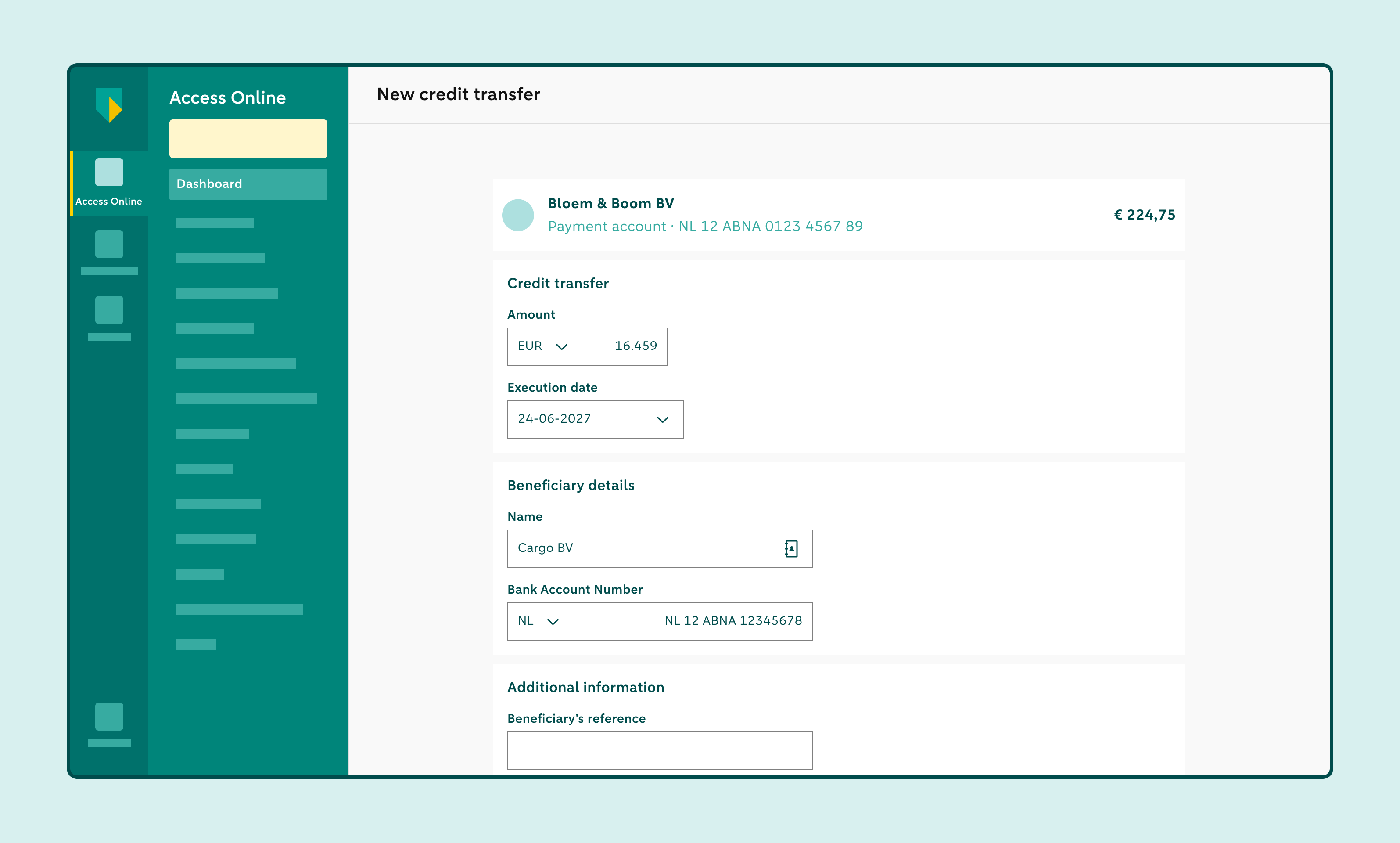
Click New credit transfer
Enter the required details:
- Currency
- Amount
- Beneficiary’s name
- Beneficiary’s account number
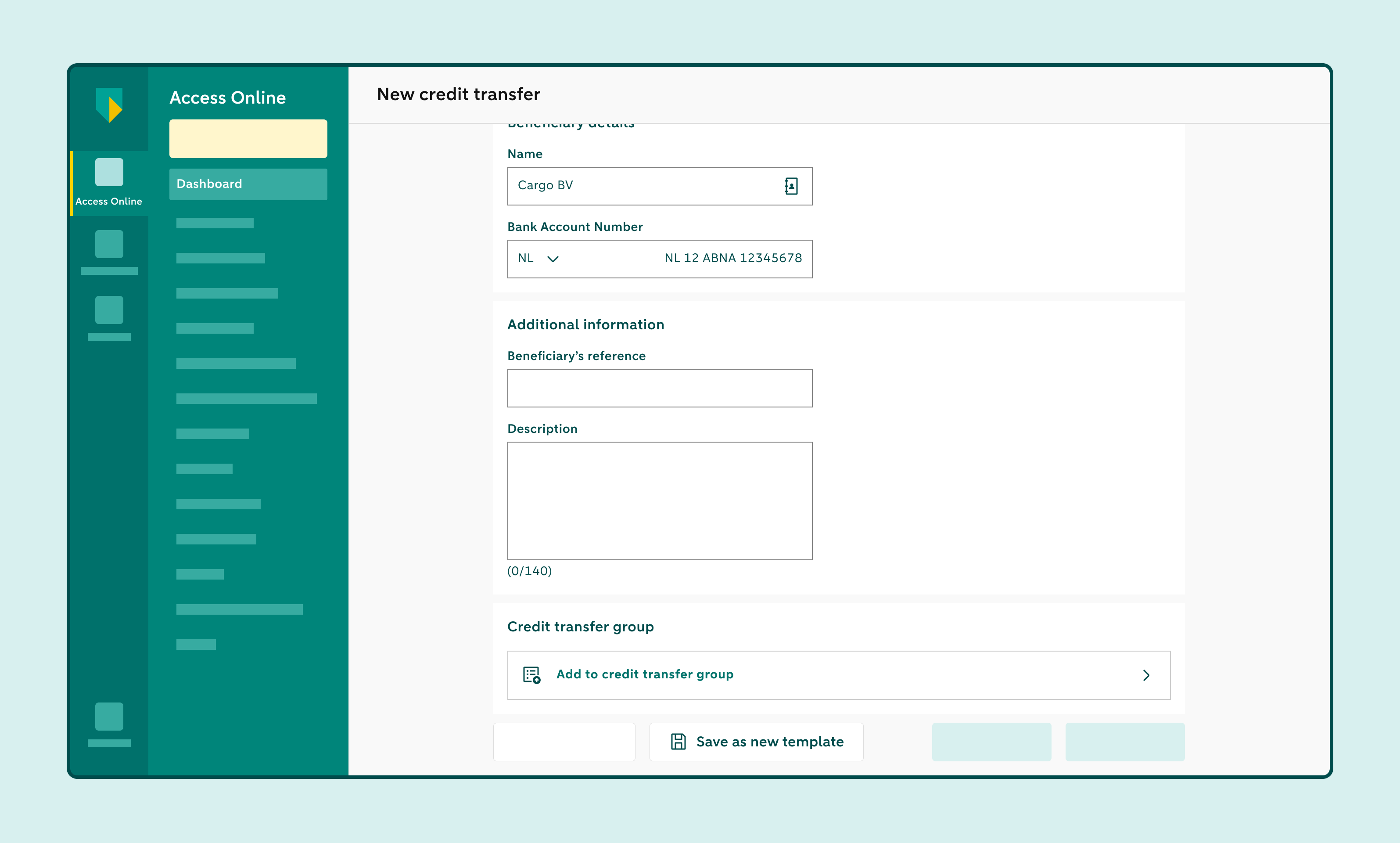
Click Save as new template
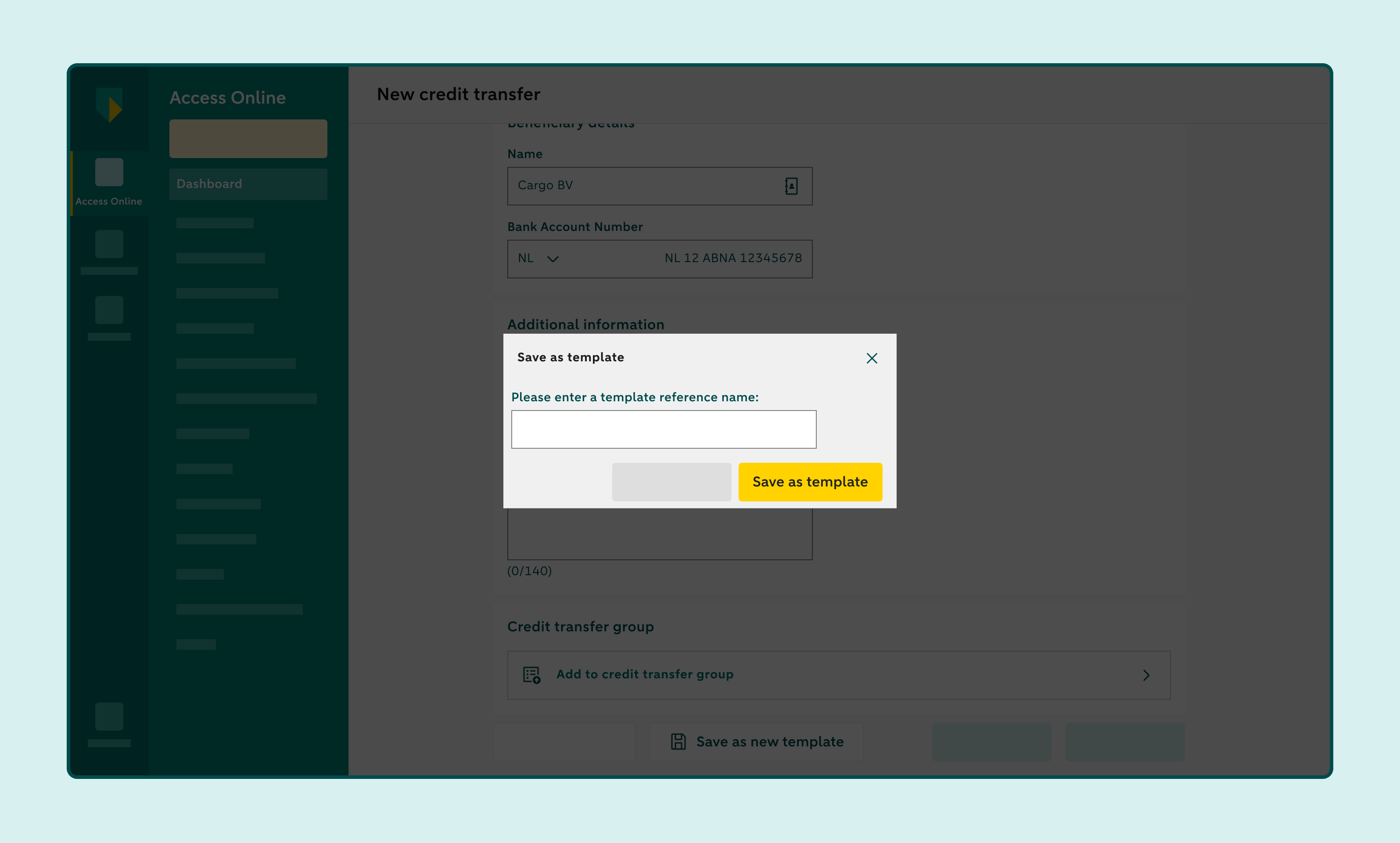
Give the payment template a clear name
Click Save as template
How to use a payment template
Go to Administration and click Payment templates
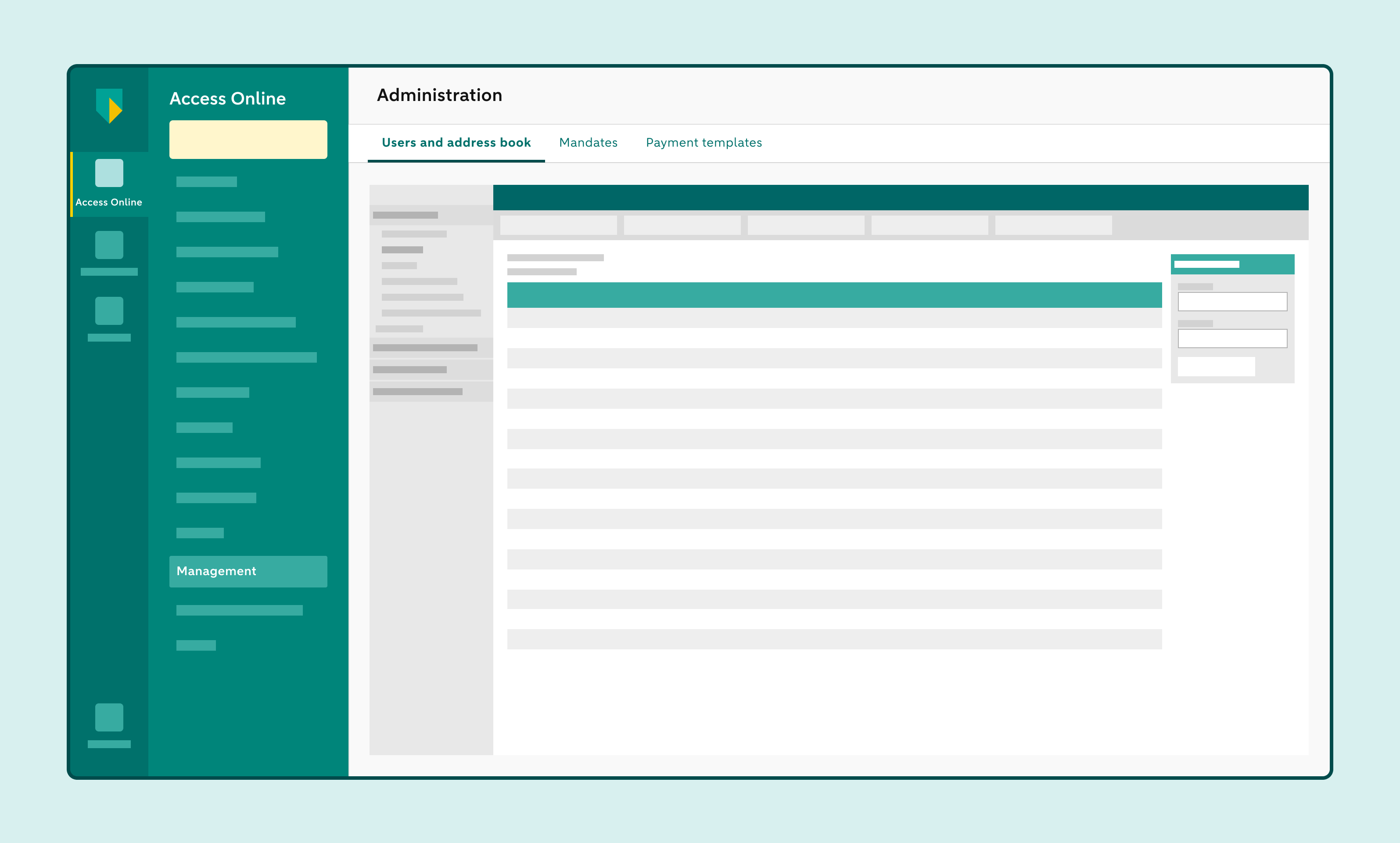
Find or select the payment template you want to use
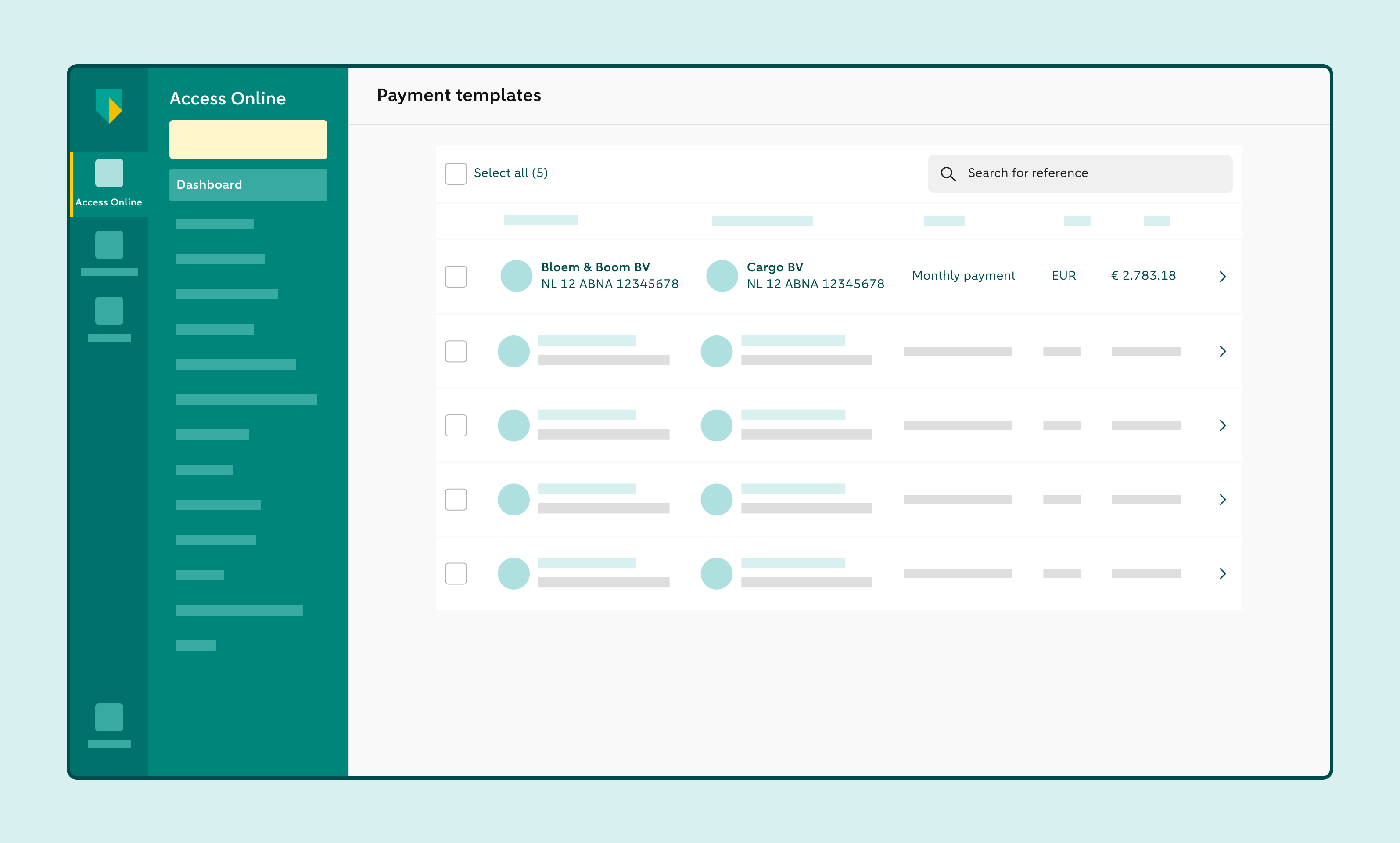
Go to Details and click Use template
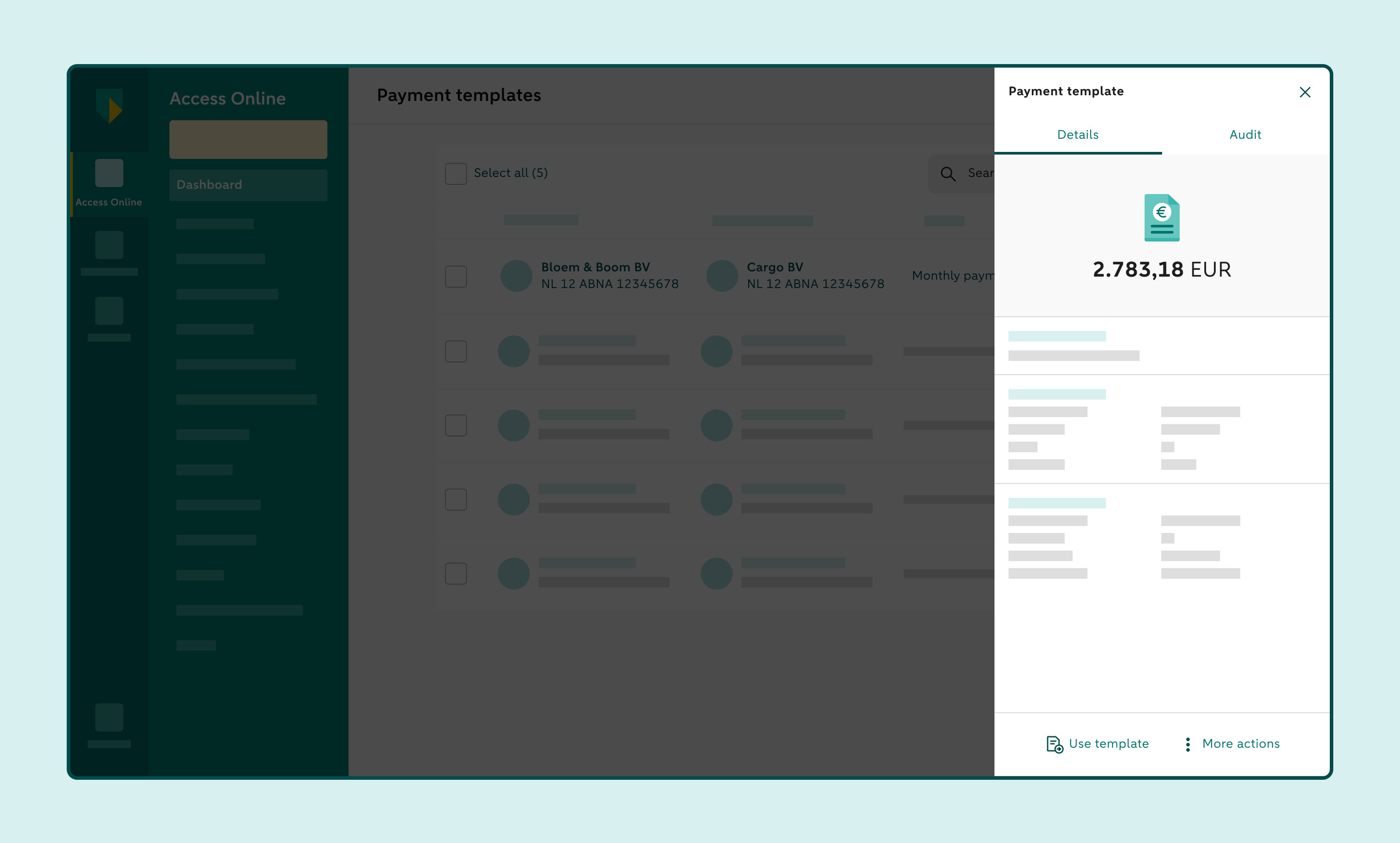
Check the details on the New credit transfer screen
Sign and send the credit transfer
How to edit a payment template
Go to Administration and click Payment templates
Select the payment template you want to edit
In the right-hand panel, go to Details
Click More actions and then Edit
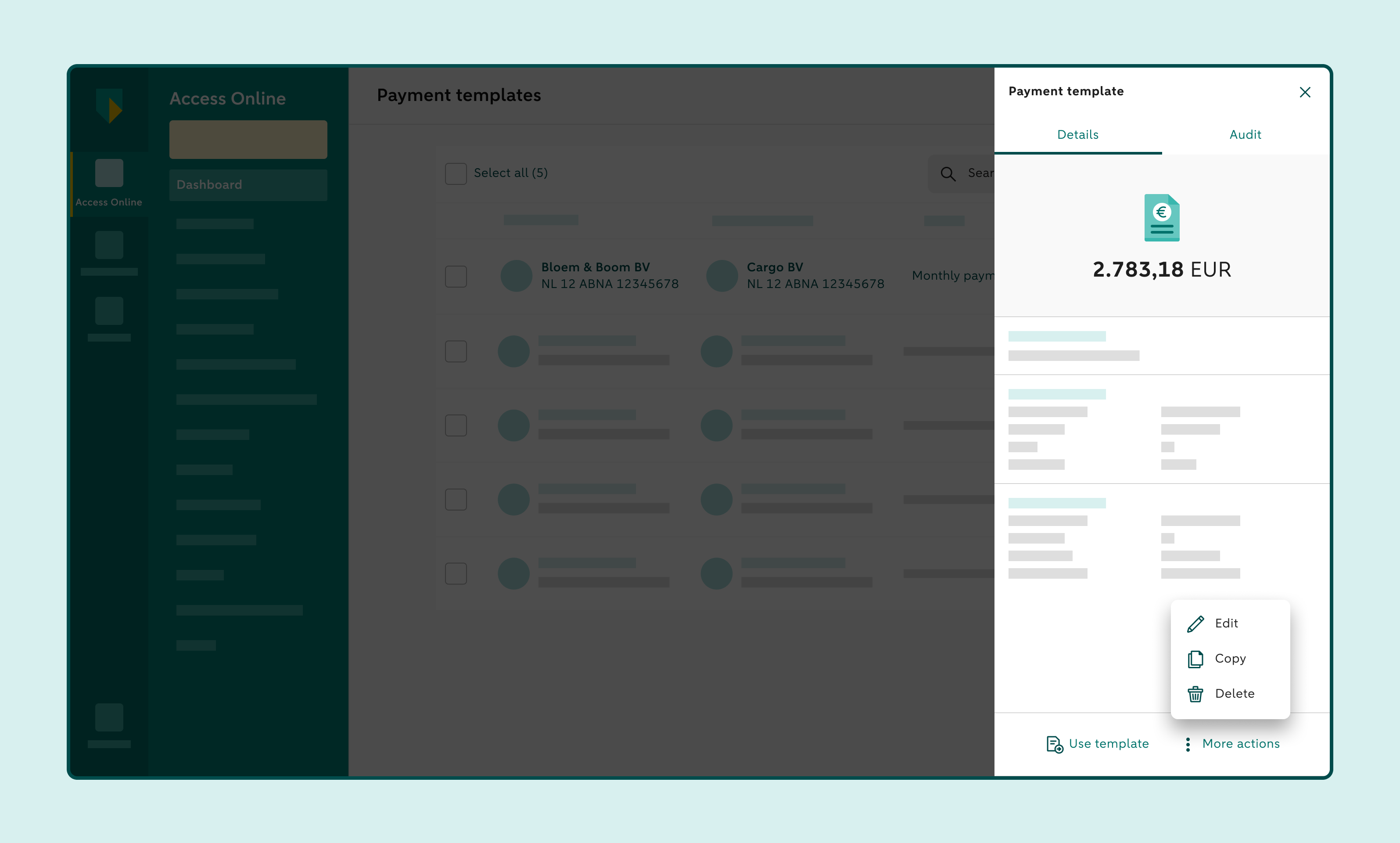
Edit the details
Click Save changes to edit the existing payment template
If you want to keep the existing payment template, click Save as new template.
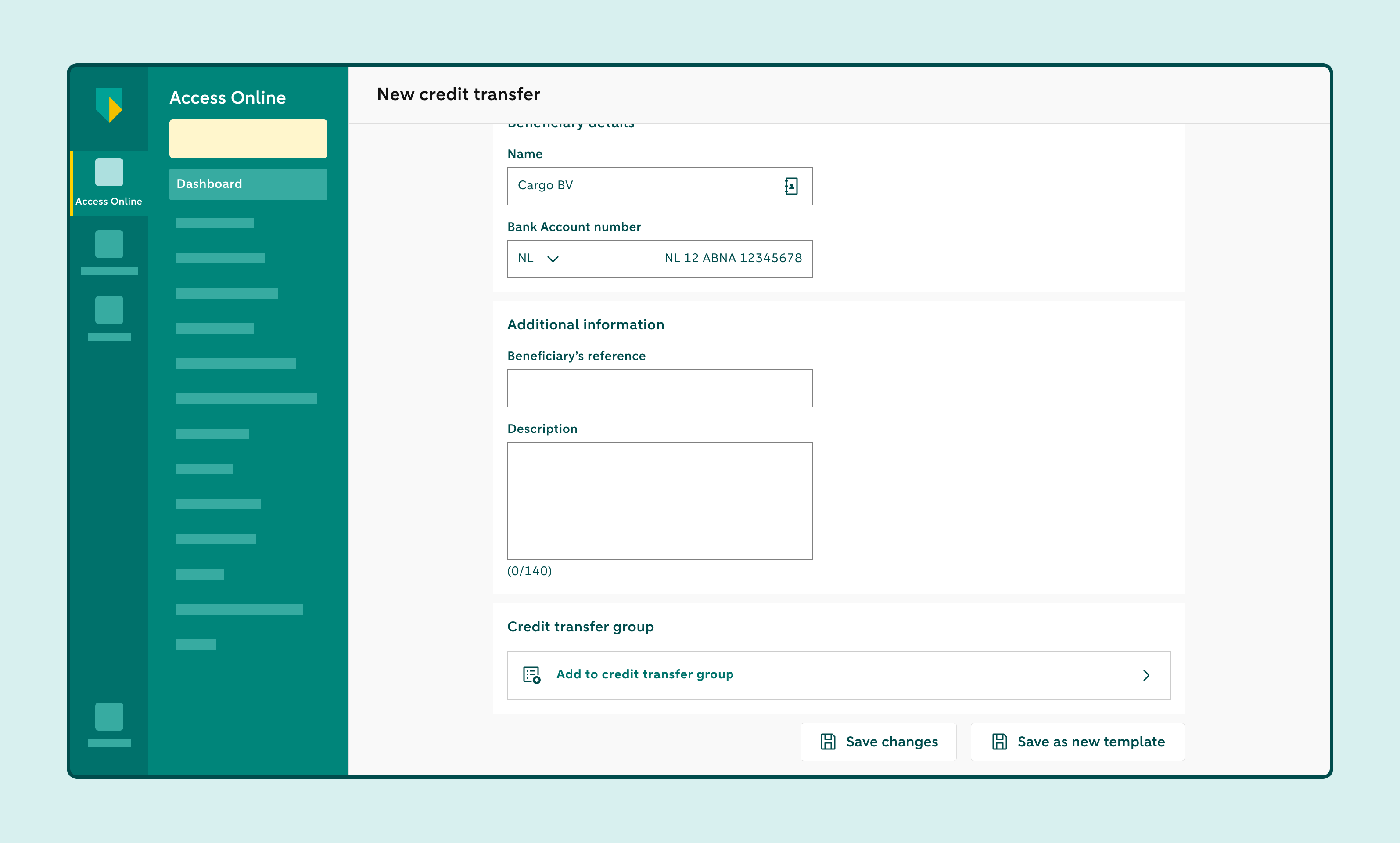
How to delete one or more payment templates
Go to Administration and click Payment templates
Select the payment templates you want to delete
Click Delete selection
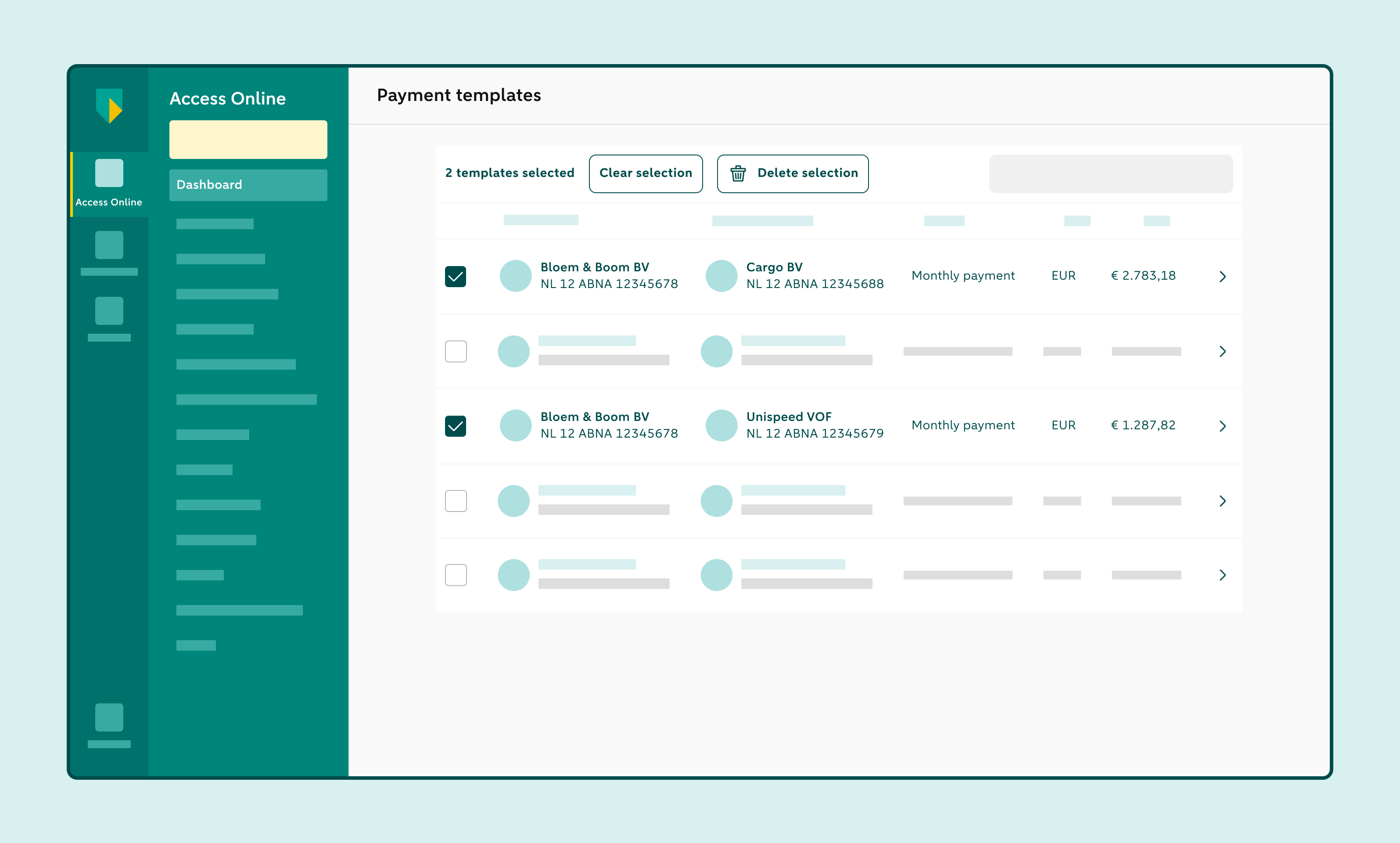
Confirm that you want to delete the payment templates
How to delete one payment template under Details
Go to Administration and click Payment templates
Select the payment template you want to delete
In the right-hand panel, go to Details
Click More actions and then Delete
Confirm that you want to delete the payment template