
Managing credit transfer groups
Credit transfer groups in Access Online allow you to group credit transfers together. In Access Online Classic, these groups were called Sets. A credit transfer group can contain up to 500 manually entered credit transfers. This allows you to approve, release and track larger numbers of credit transfers more quickly.
You decide which credit transfers are displayed together and sent to the bank together.
How to create a credit transfer group
Create a new credit transfer
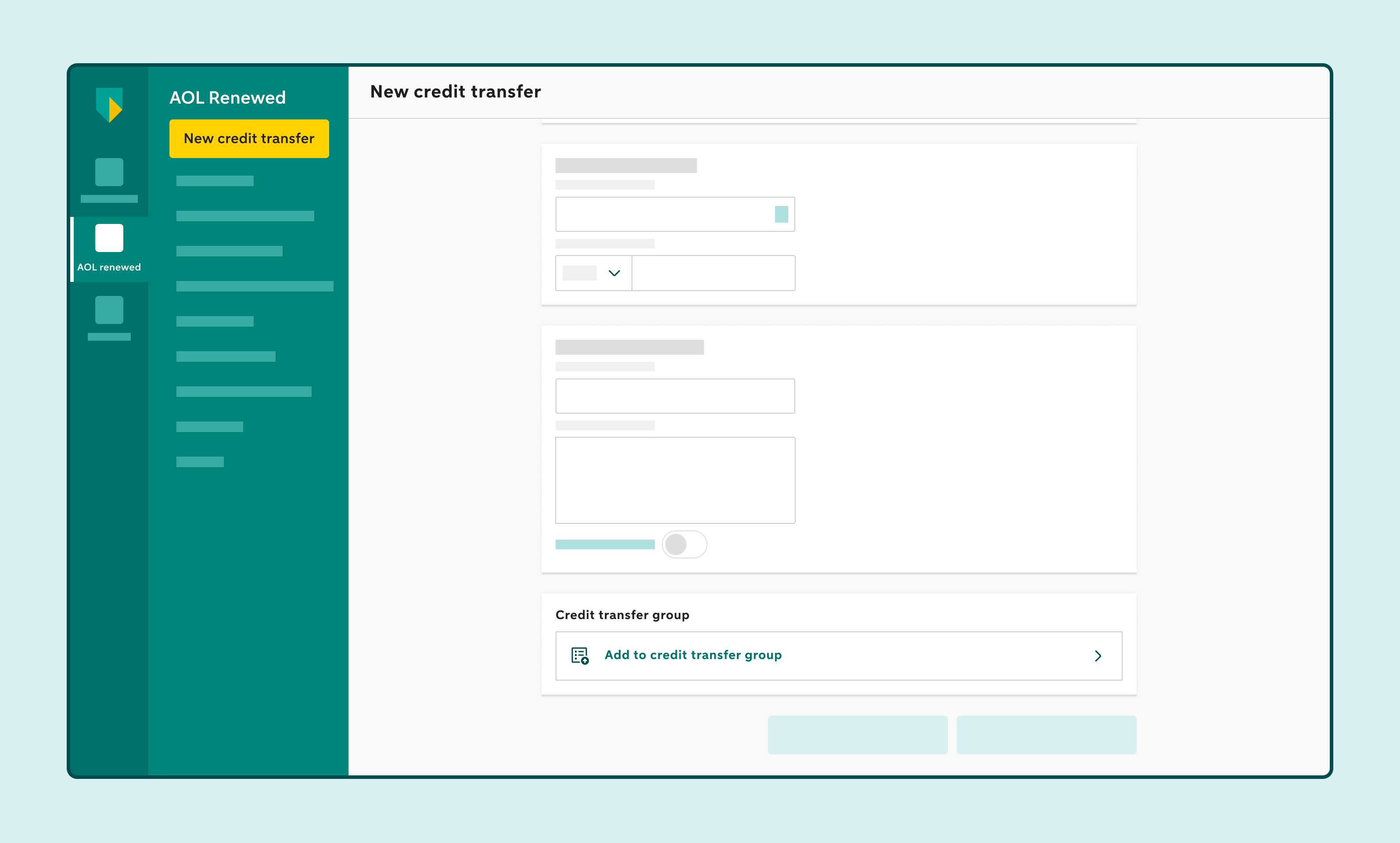
Before sending the credit transfer, click Add to credit transfer group
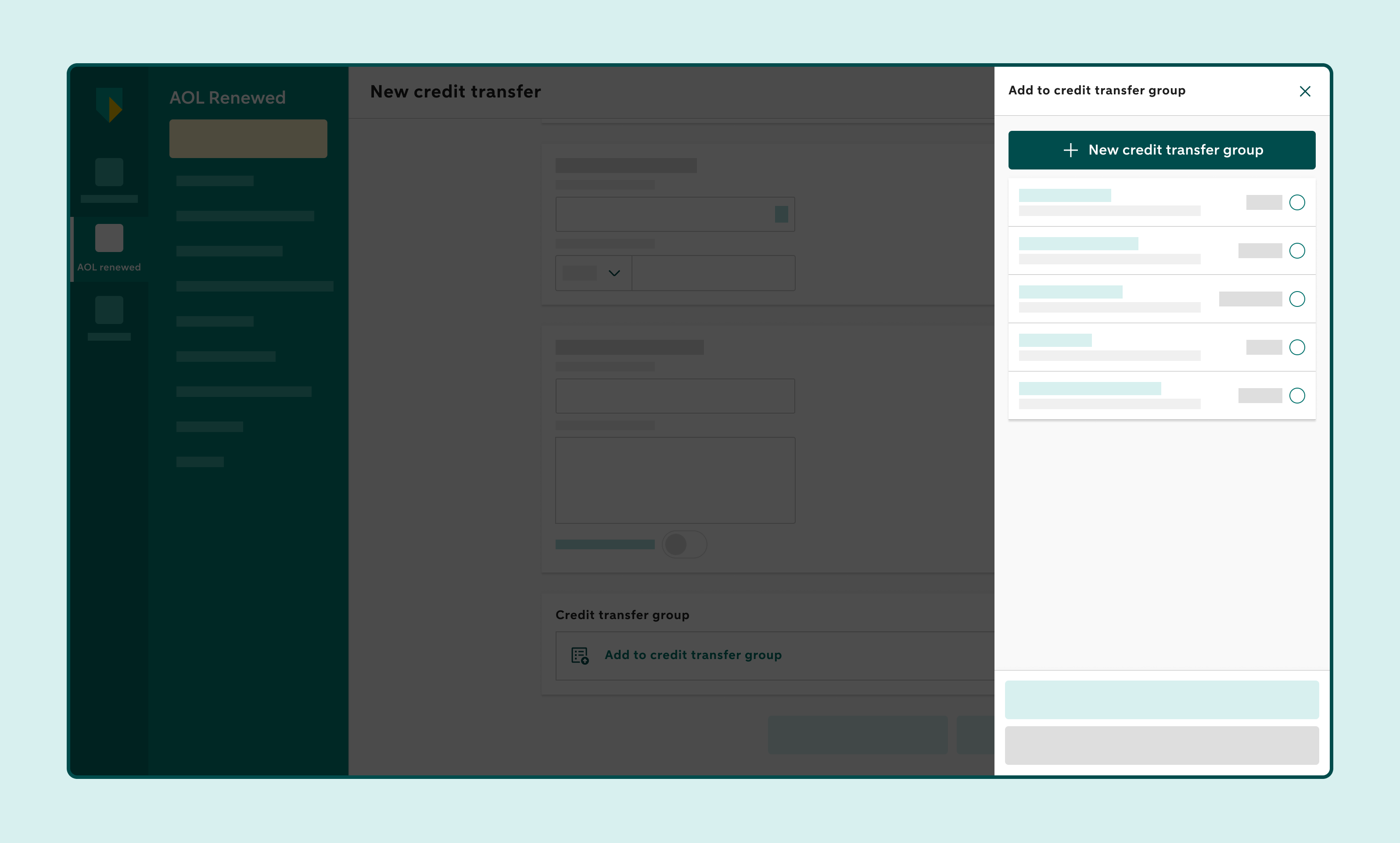
Click New credit transfer group
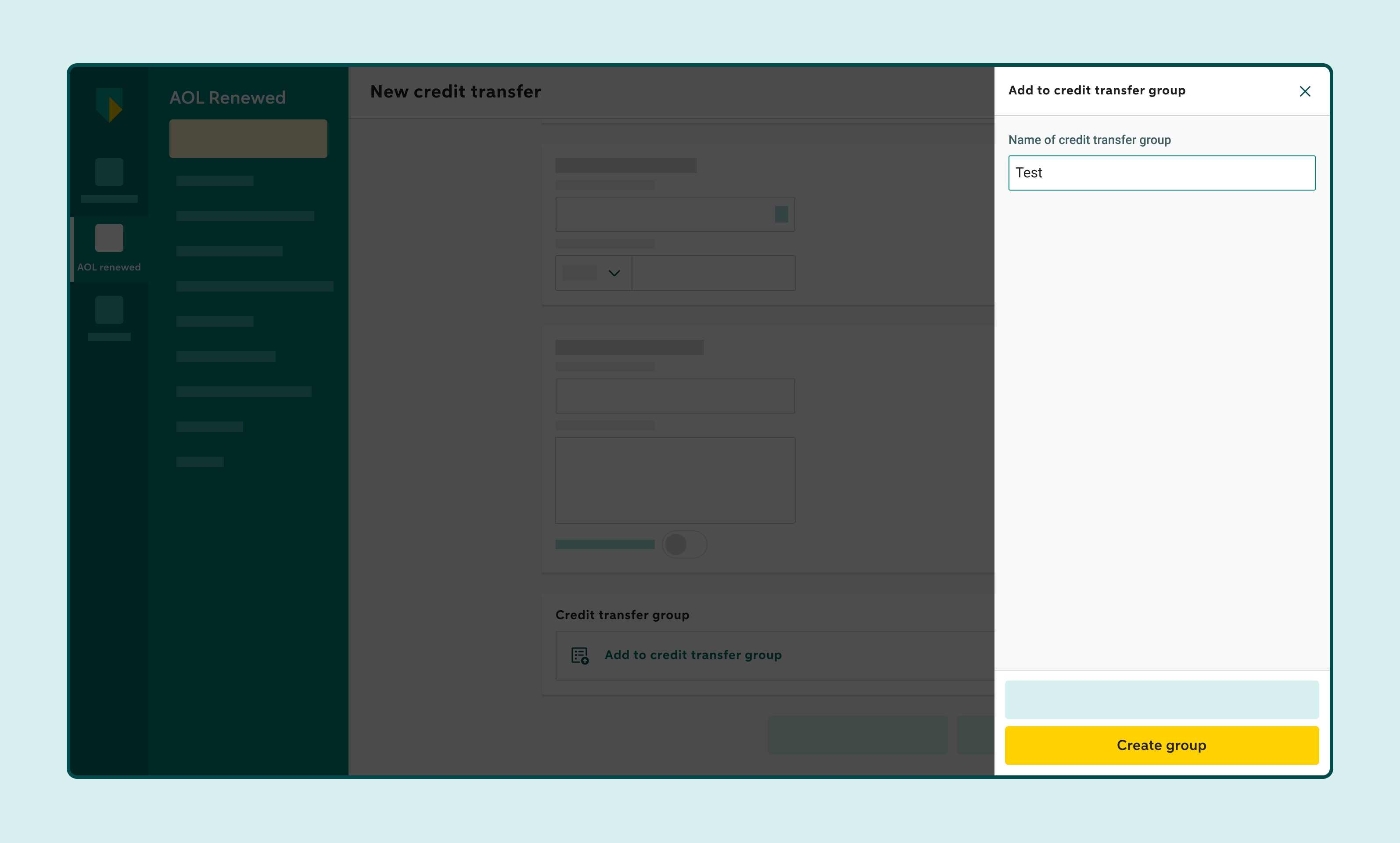
Enter a name for the credit transfer group
Choose a name that you and your colleagues will easily recognise, such as December invoices.
Click Create group
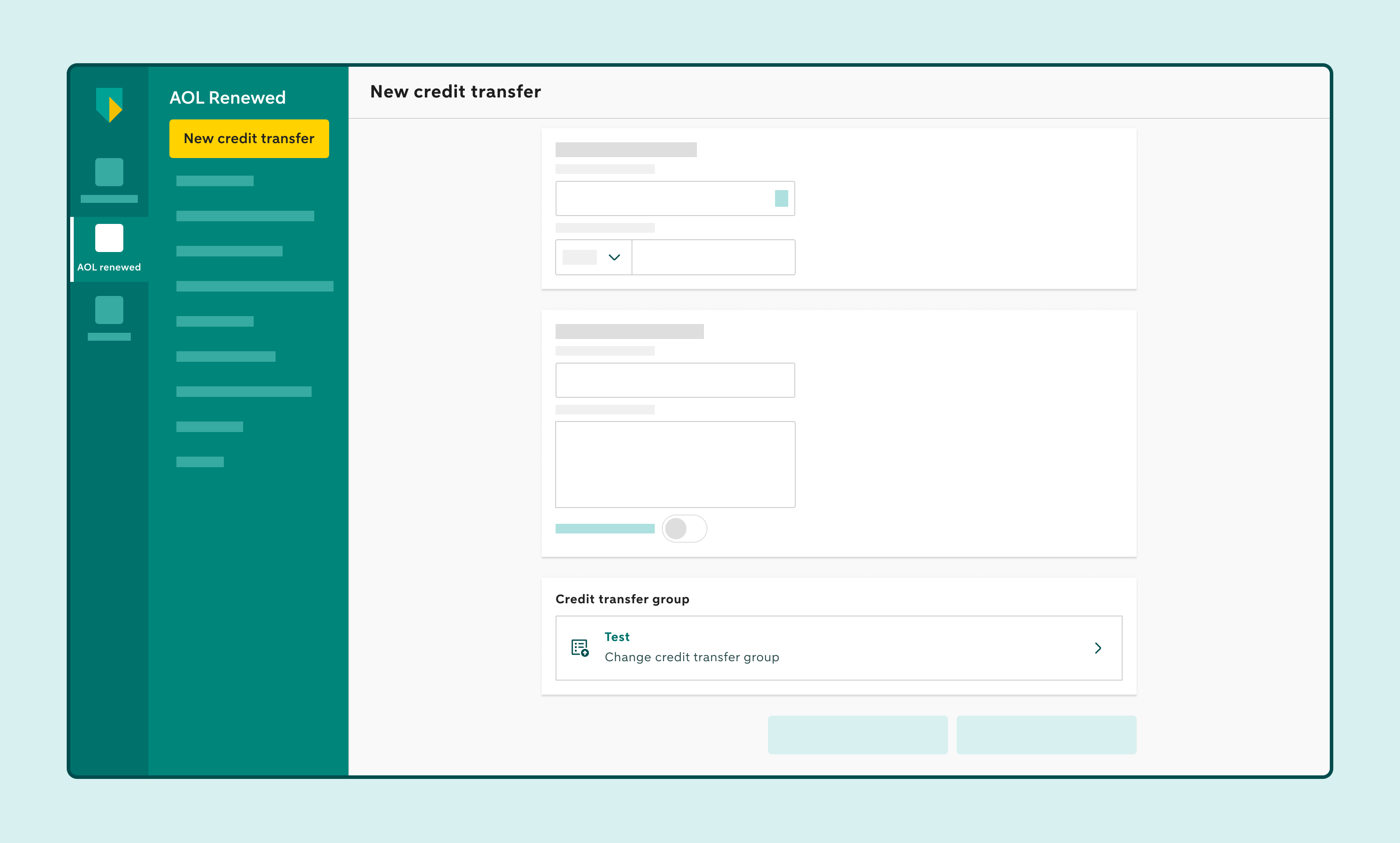
Send the credit transfer
How to add a credit transfer to an existing credit transfer group
Create a new credit transfer
Before sending the credit transfer, click Add to credit transfer group
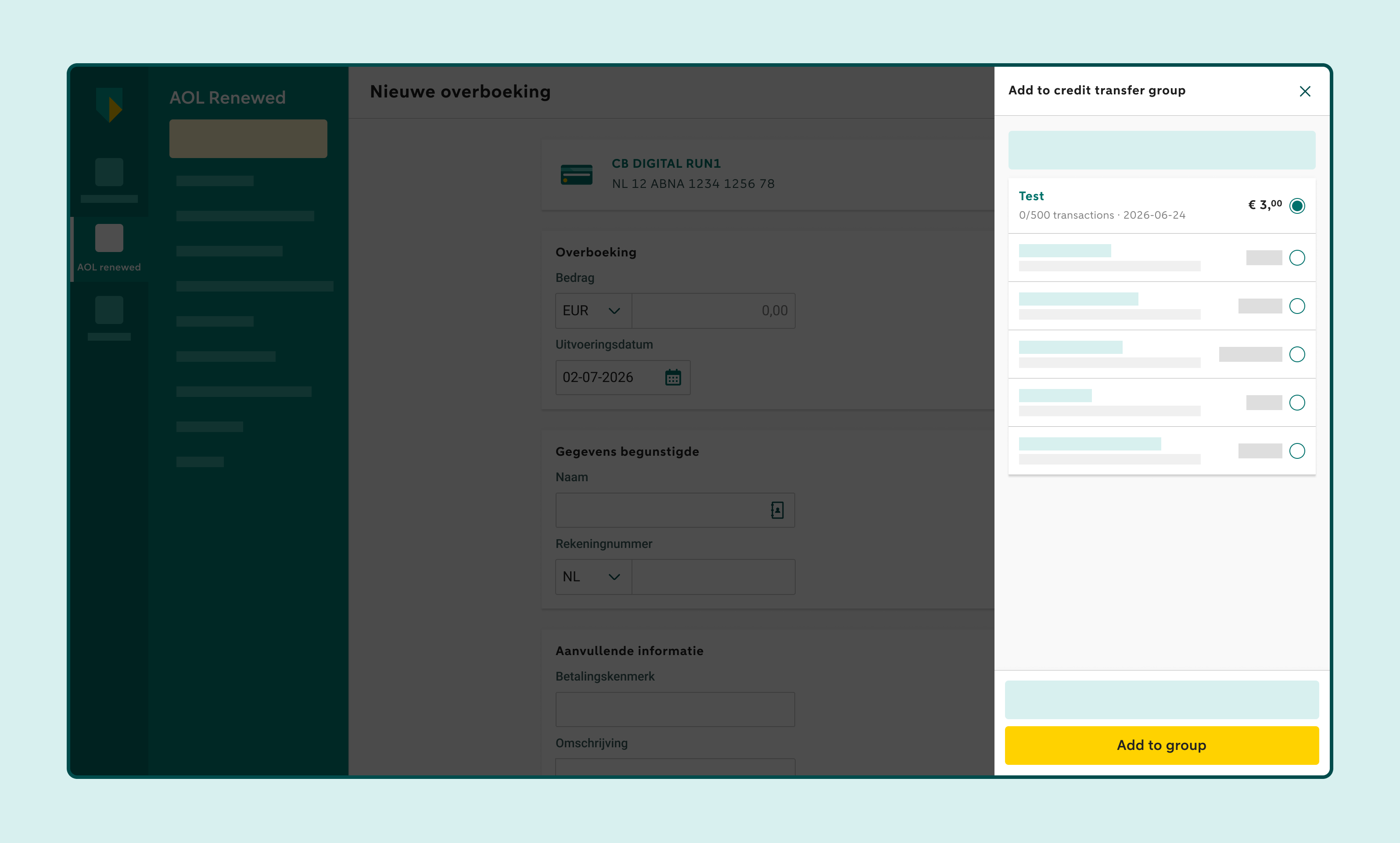
Select the credit transfer group you want to add the credit transfer to
Click Add to group
Send the credit transfer
How to add a credit transfer to a credit transfer group later
Click Payment tracking
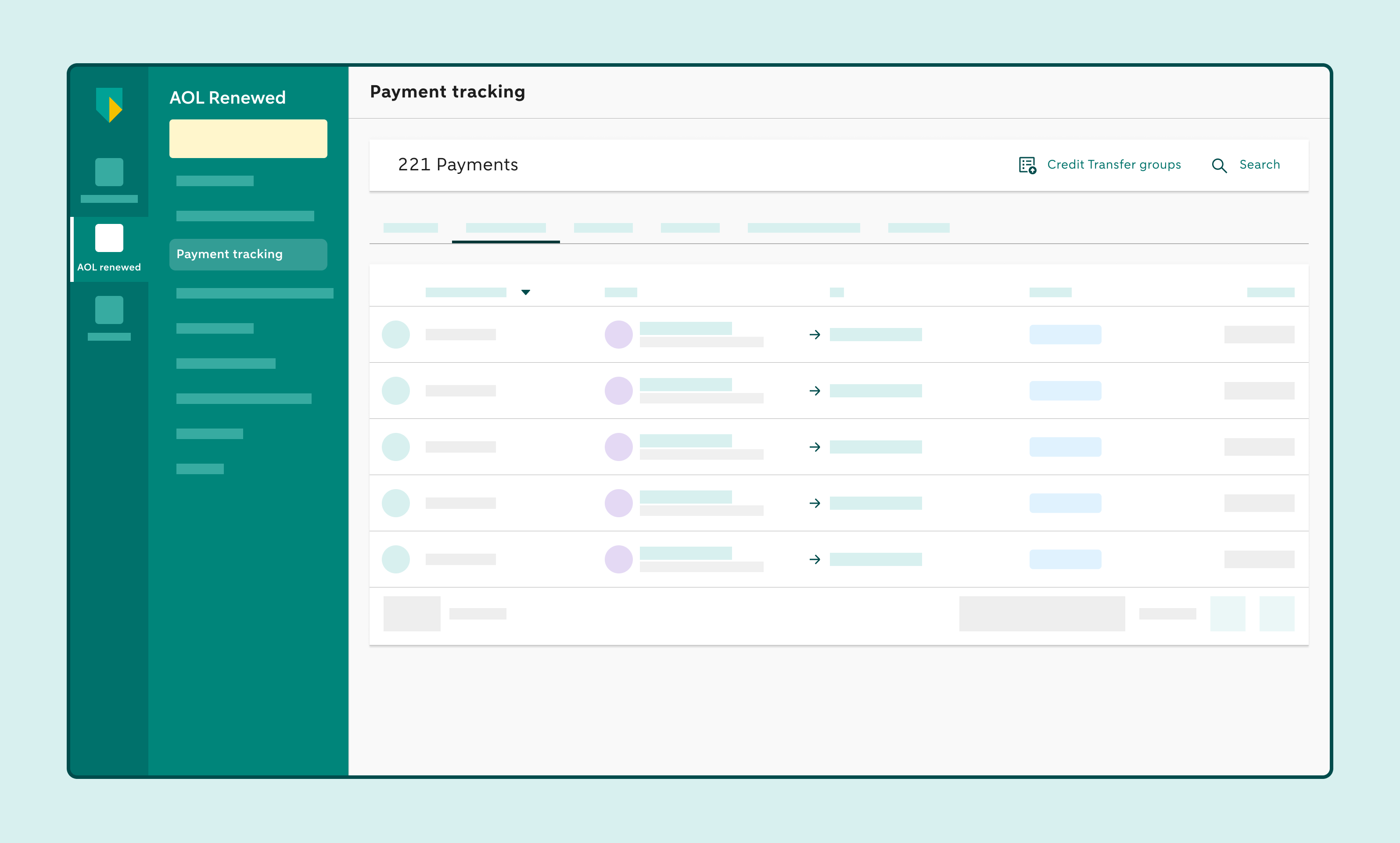
Select the credit transfer you want to add
The credit transfer details are displayed on the right.
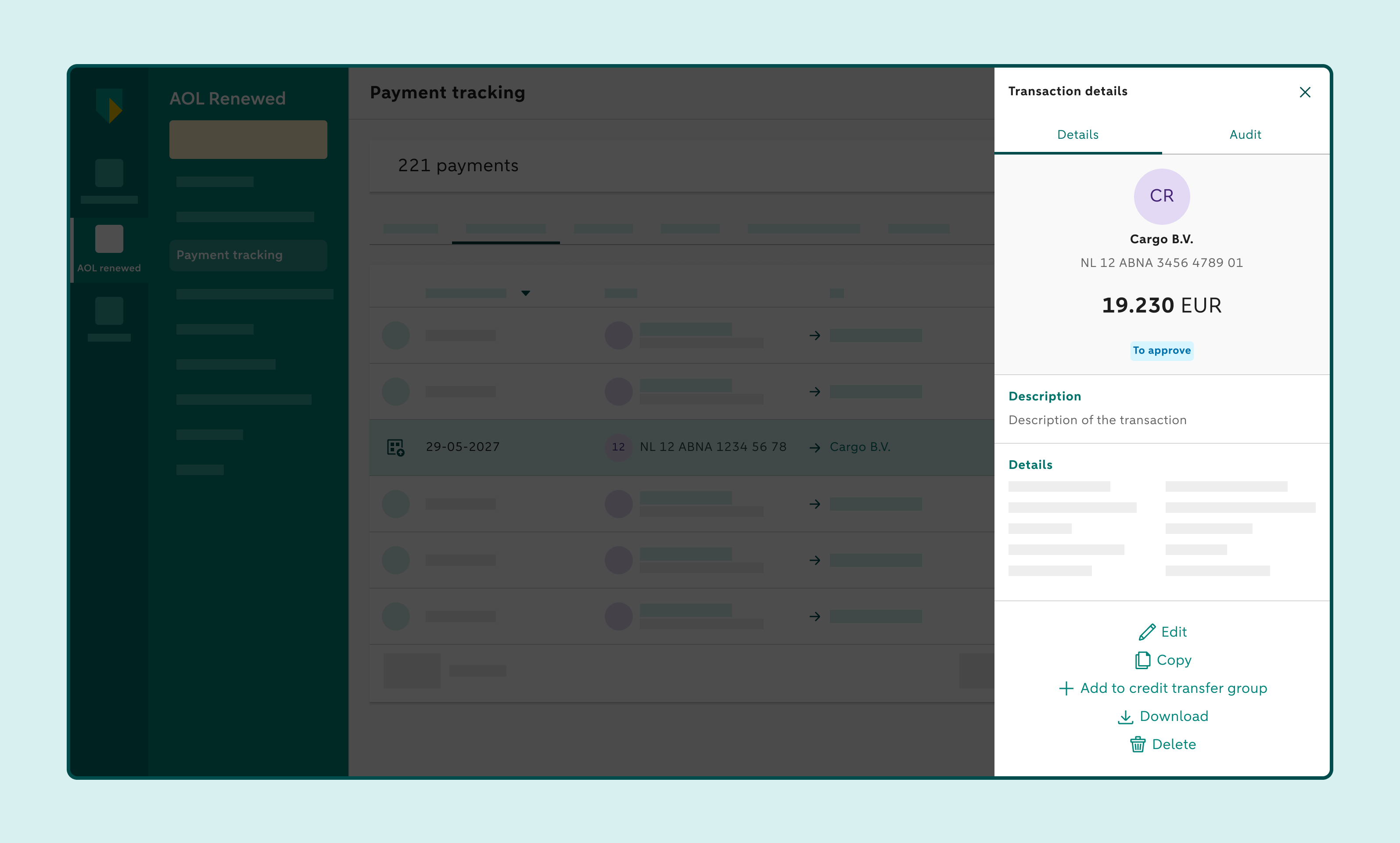
Click Details and then Add to credit transfer group
Select the credit transfer group you want to add the credit transfer to
Click Add to group
How to remove a credit transfer from a credit transfer group
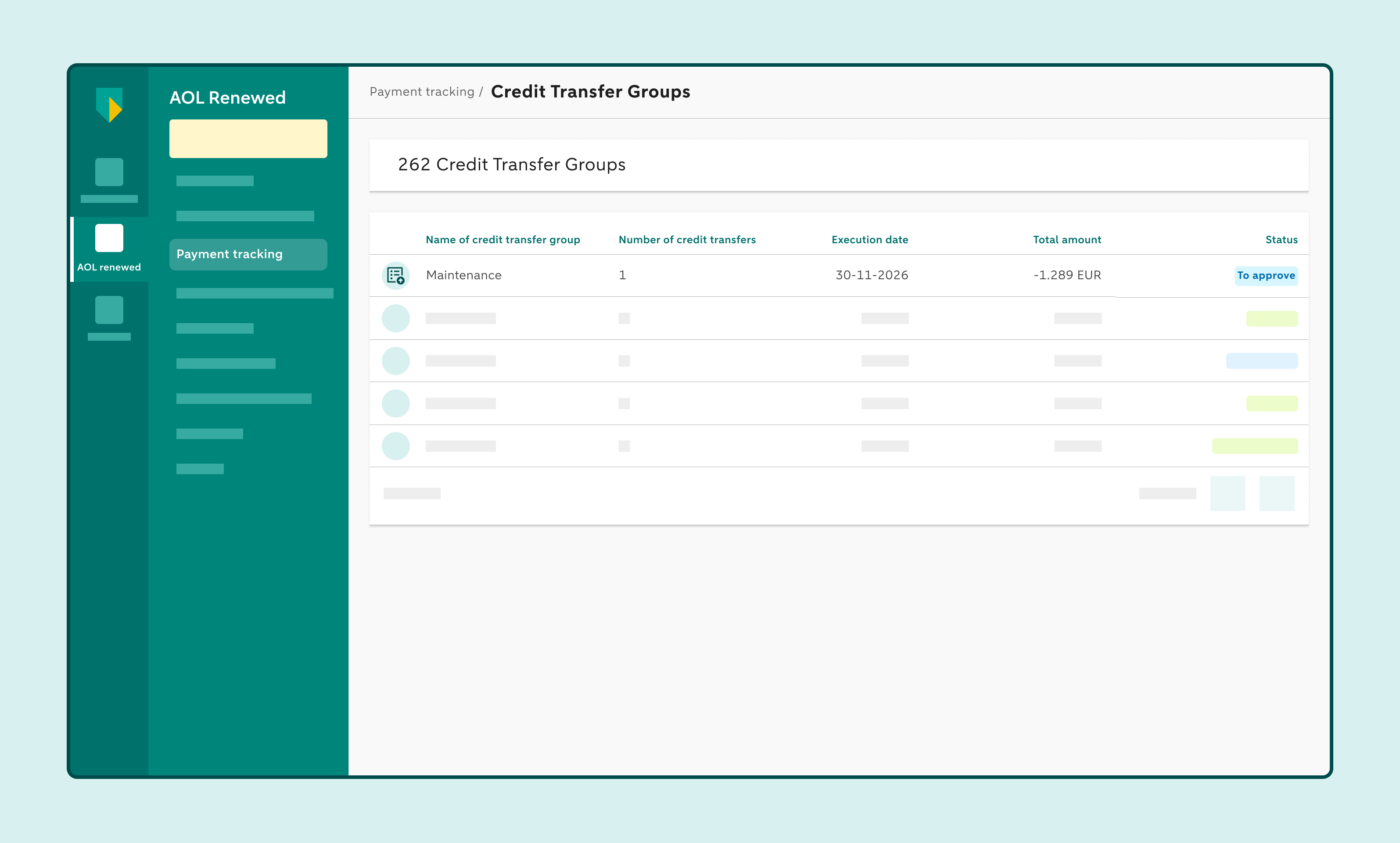
Click Payment tracking and then Credit transfer groups
Select the credit transfer group containing the credit transfer you want to remove
The credit transfer group details are displayed on the right.
Under Credit transfer group details, click Credit transfers
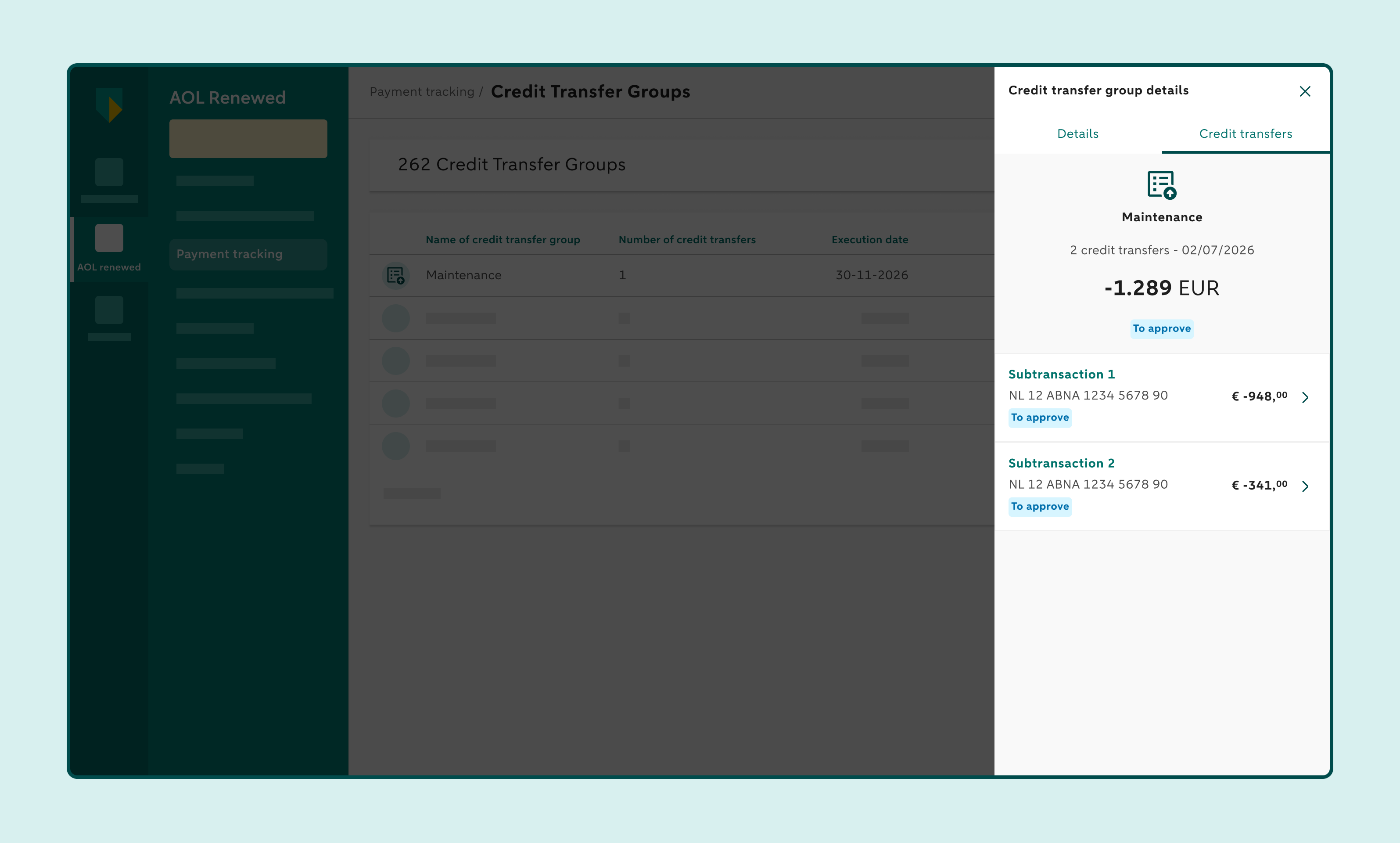
Select the credit transfer you want to remove
Under Details, click Remove from group
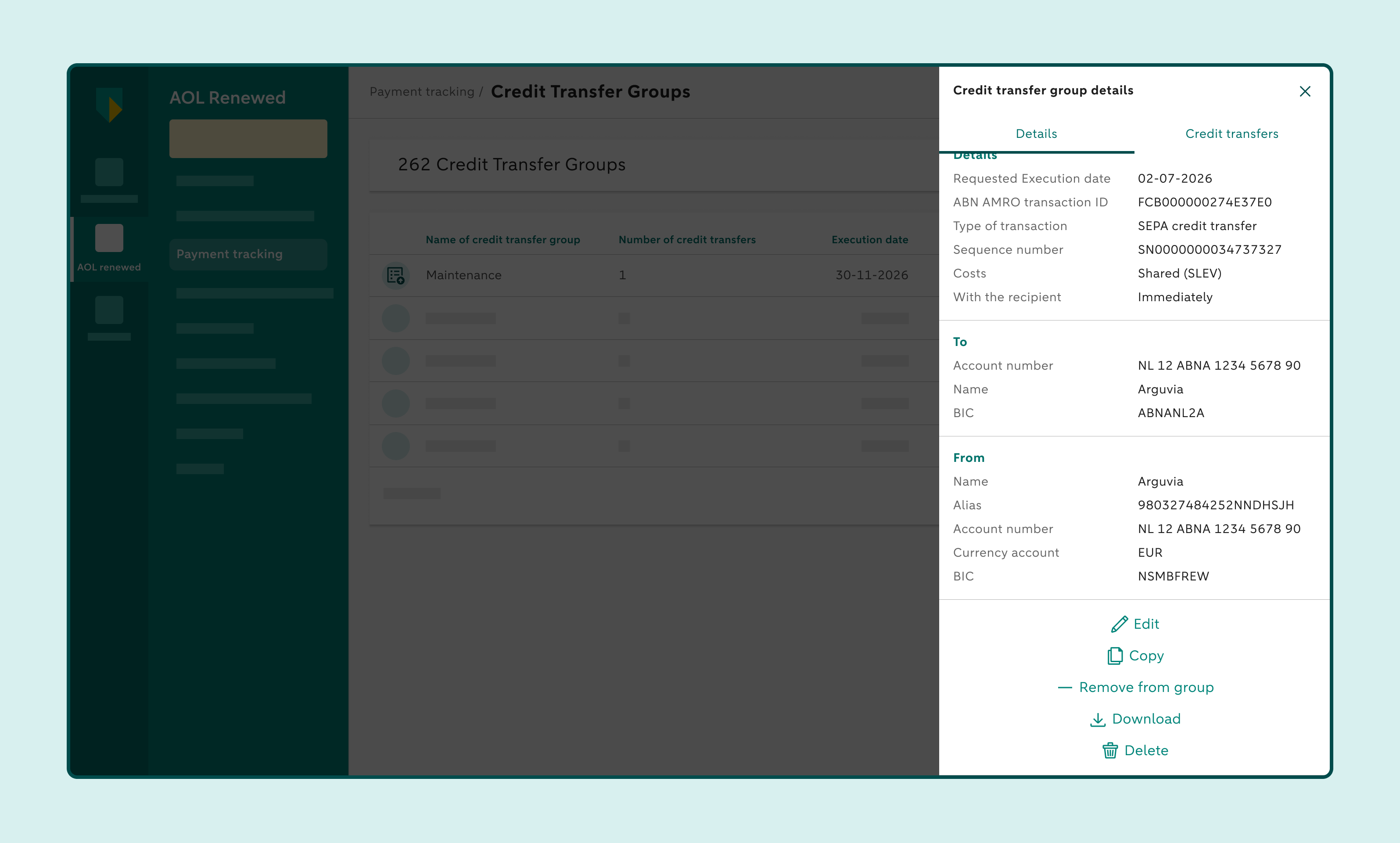
How to approve a credit transfer group
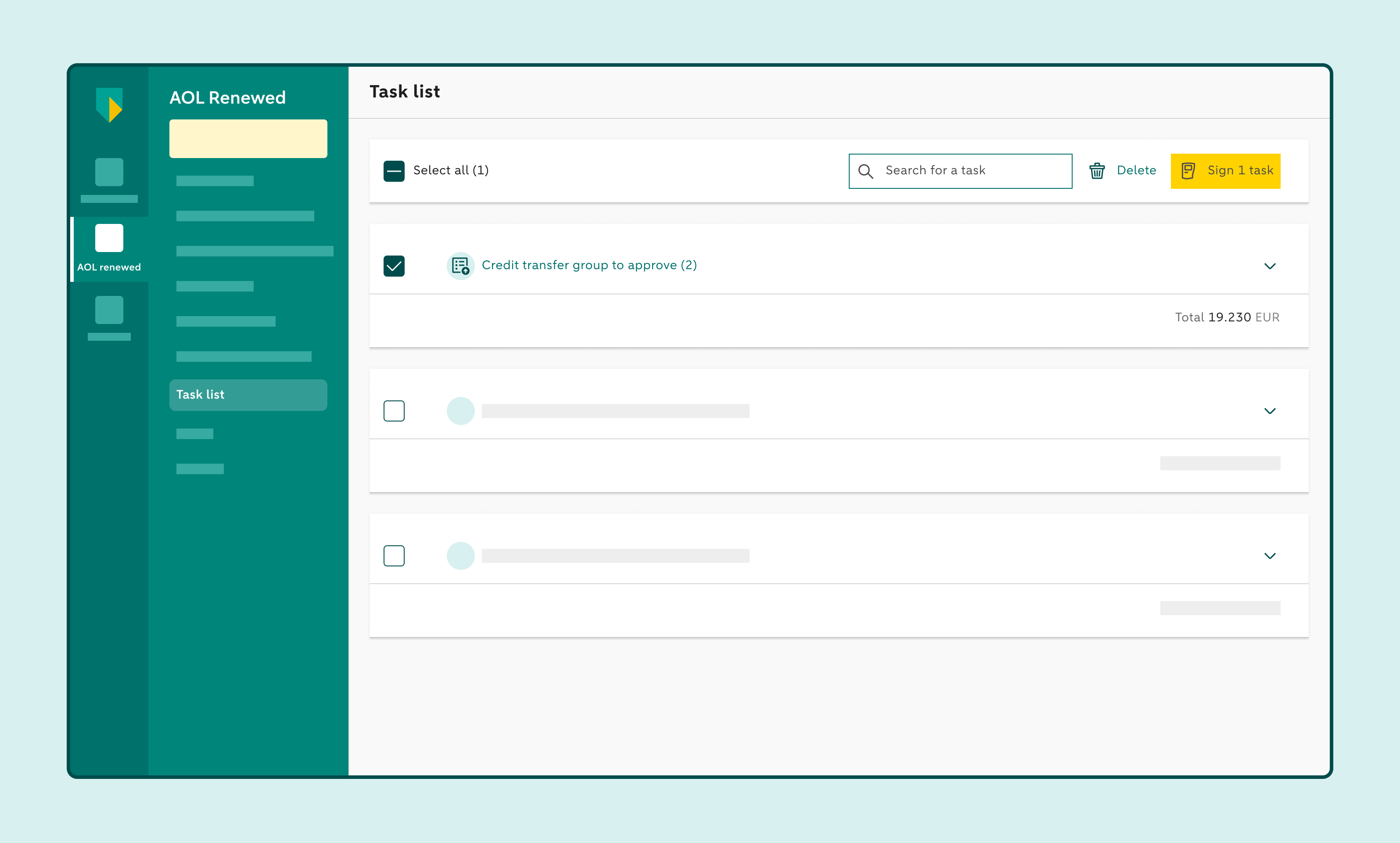
Click Task list
Open the group by clicking the drop-down icon in the top-right corner of the group
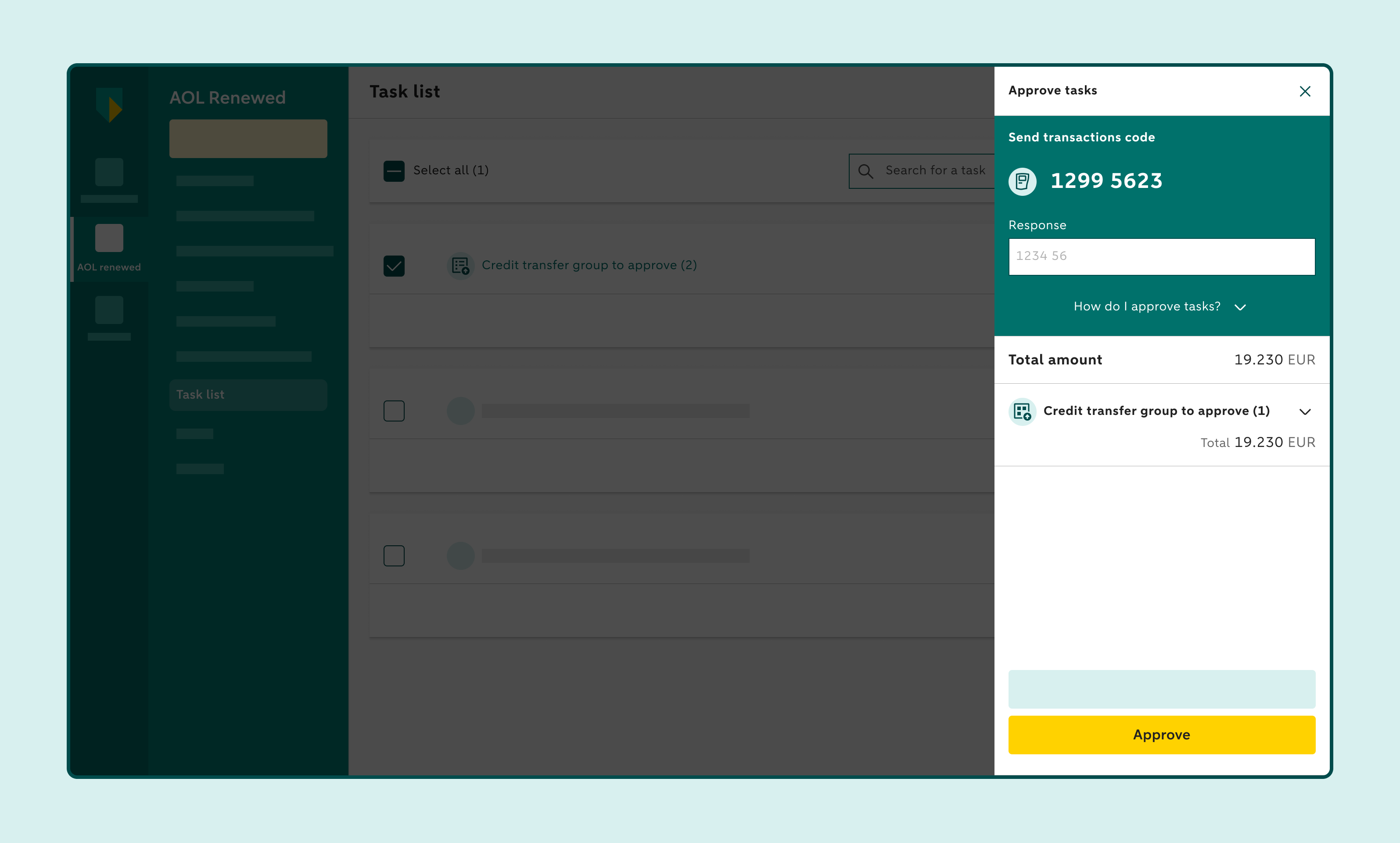
Approve the credit transfers
You can approve credit transfers individually or approve the entire group at once.
Important
- The Task list can display up to 1,000 items awaiting approval.
- You can select and approve up to 500 items at once.
- You can approve credit transfers in a group individually or approve the entire group at once.
- If a credit transfer group contains 500 credit transfers, you can only select that group and approve it all at once.
- In that case, you can’t select other items in the Task list at the same time, such as individual credit transfers or batches.
- If your organisation uses manual release, you’ll also need to release credit transfer groups after approving them. You can find these groups under Release credit transfer groups.