
Managing mandate administration
In Access Online Renewed, you can view and manage saved mandates for SEPA direct debit. Read how to find, add, edit and remove mandates.
How to open the mandate administration
Log in and go to Access Online Renewed
In the menu on the left, click SEPA direct debit batch
You are now on the SEPA direct debit batch screen.
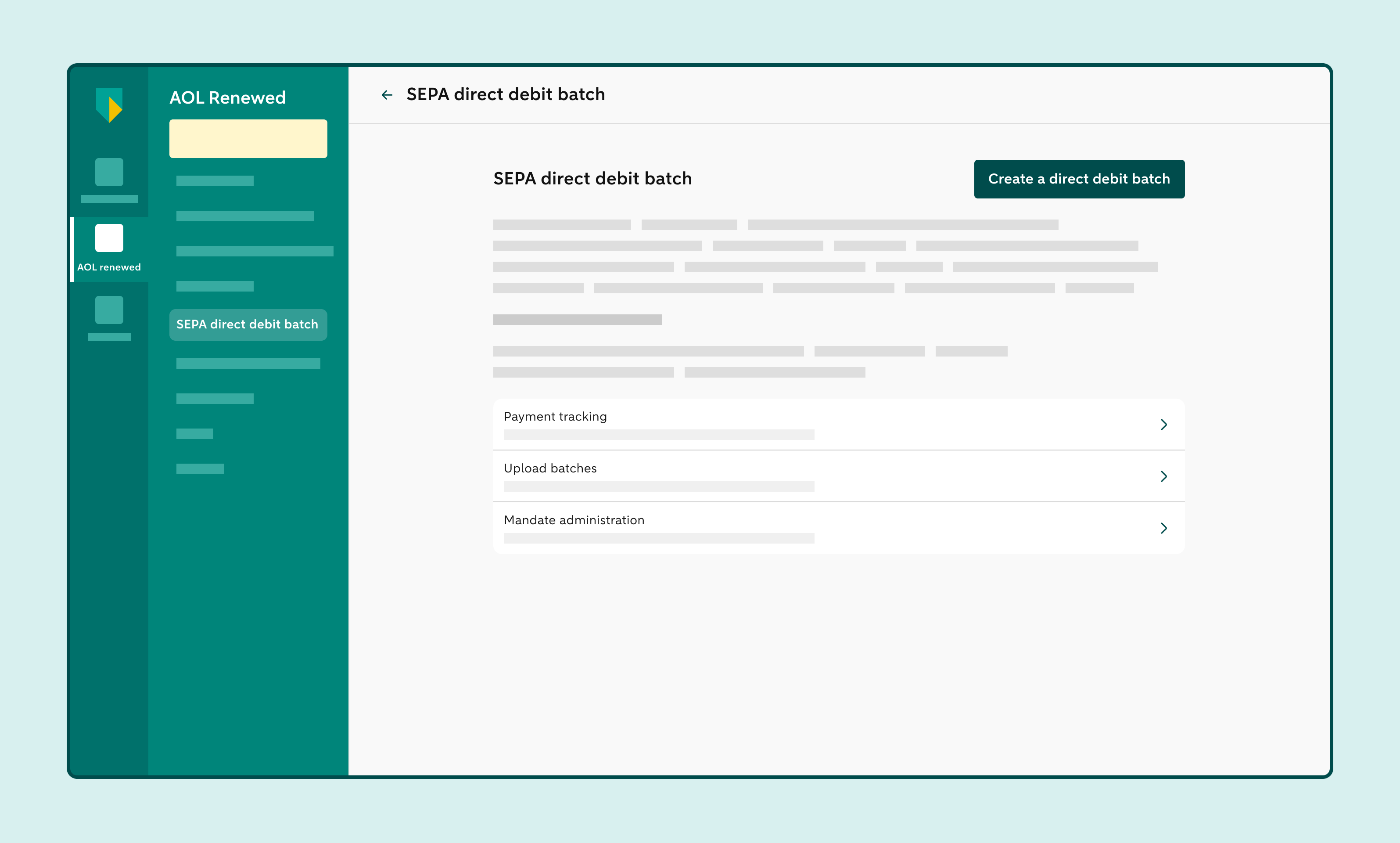
Click Mandate administration
You’ll see the overview of all saved mandates.
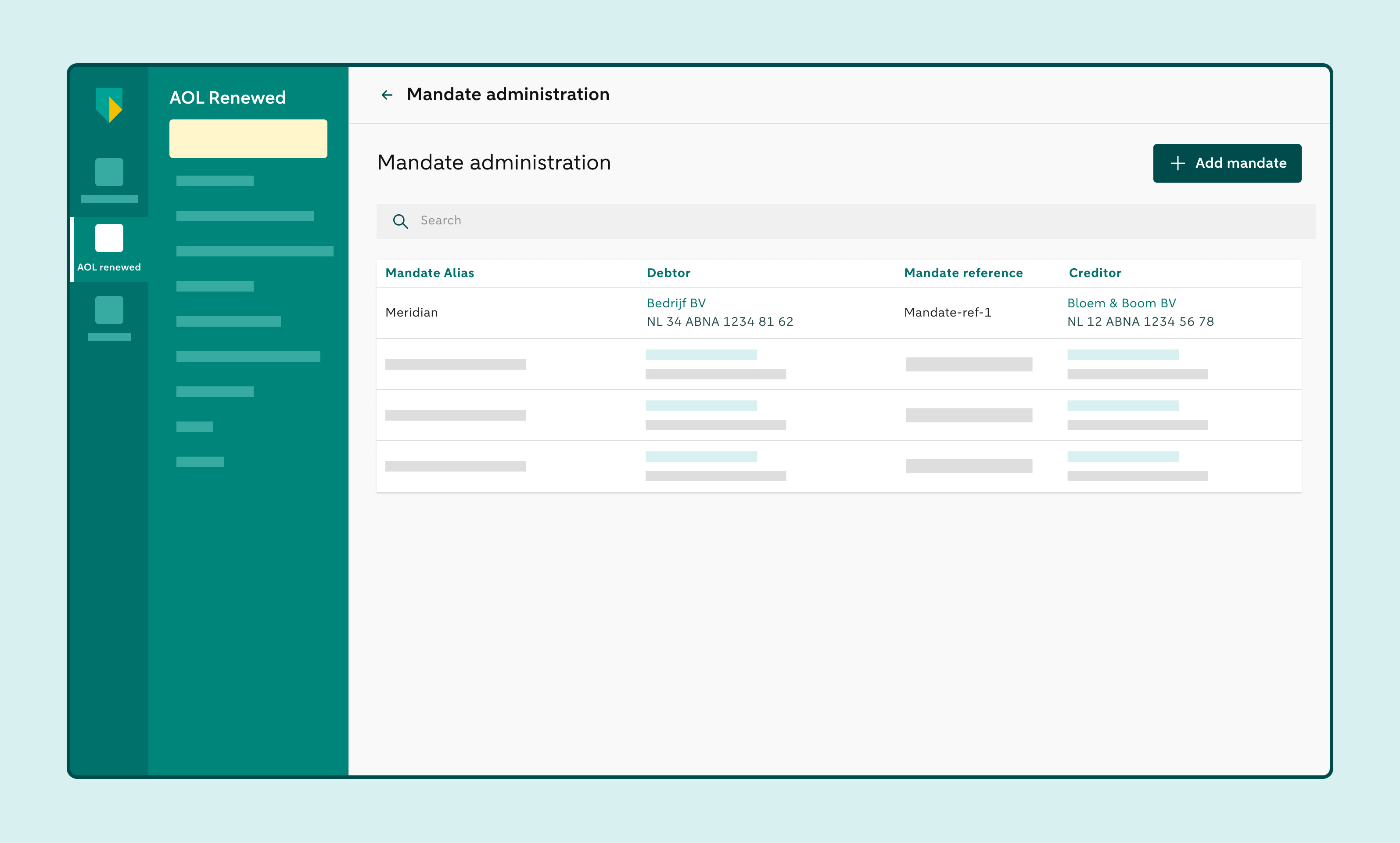
You can sort the overview by clicking 1 of the columns at the top
Enter details in the search bar at the top to find a mandate
Click Add mandate to save a new mandate
How to view mandate details
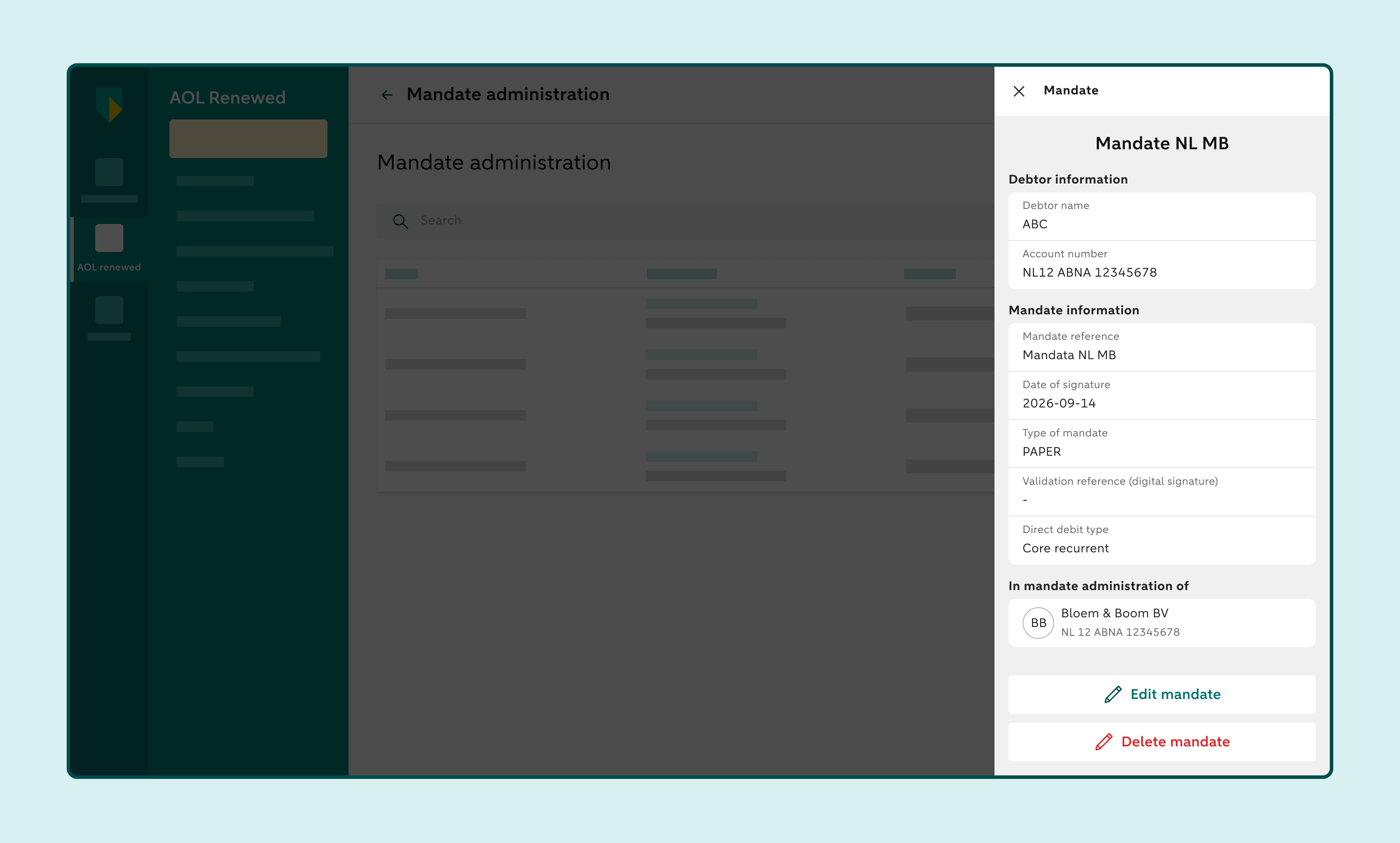
In the overview of the Mandate administration, click a mandate
You’ll see the details of the mandate on the right
How to edit a mandate
In the overview of the Mandate administration, click a mandate
Click Edit to change the mandate
You can change the Mandate alias and/or the Debtor name here. Other mandate details, such as the debtor's account number, mandate reference, creditor ID, and the creditor's name, can only be changed if you add a transaction to a direct debit batch.
How to remove a mandate
In the overview of the Mandate administration, click a mandate
Click Delete mandate if you want to remove the mandate from the administration