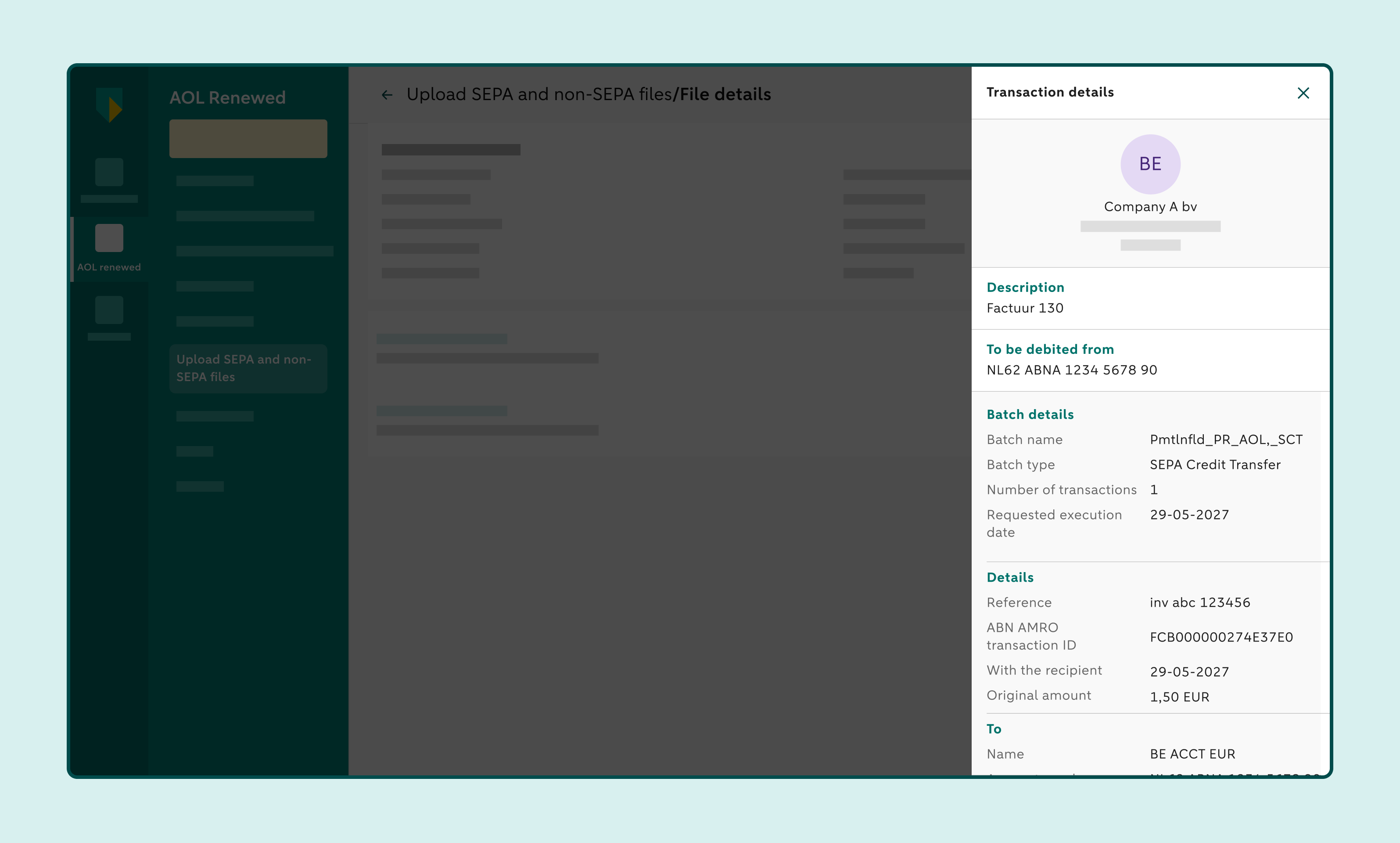
Check a payment file
In Access Online Renewed, you can check a batch immediately after uploading it. You can also check a batch after submitting the payment file, as long as the batch still has the status To approve.
How to check the payment file immediately after uploading it
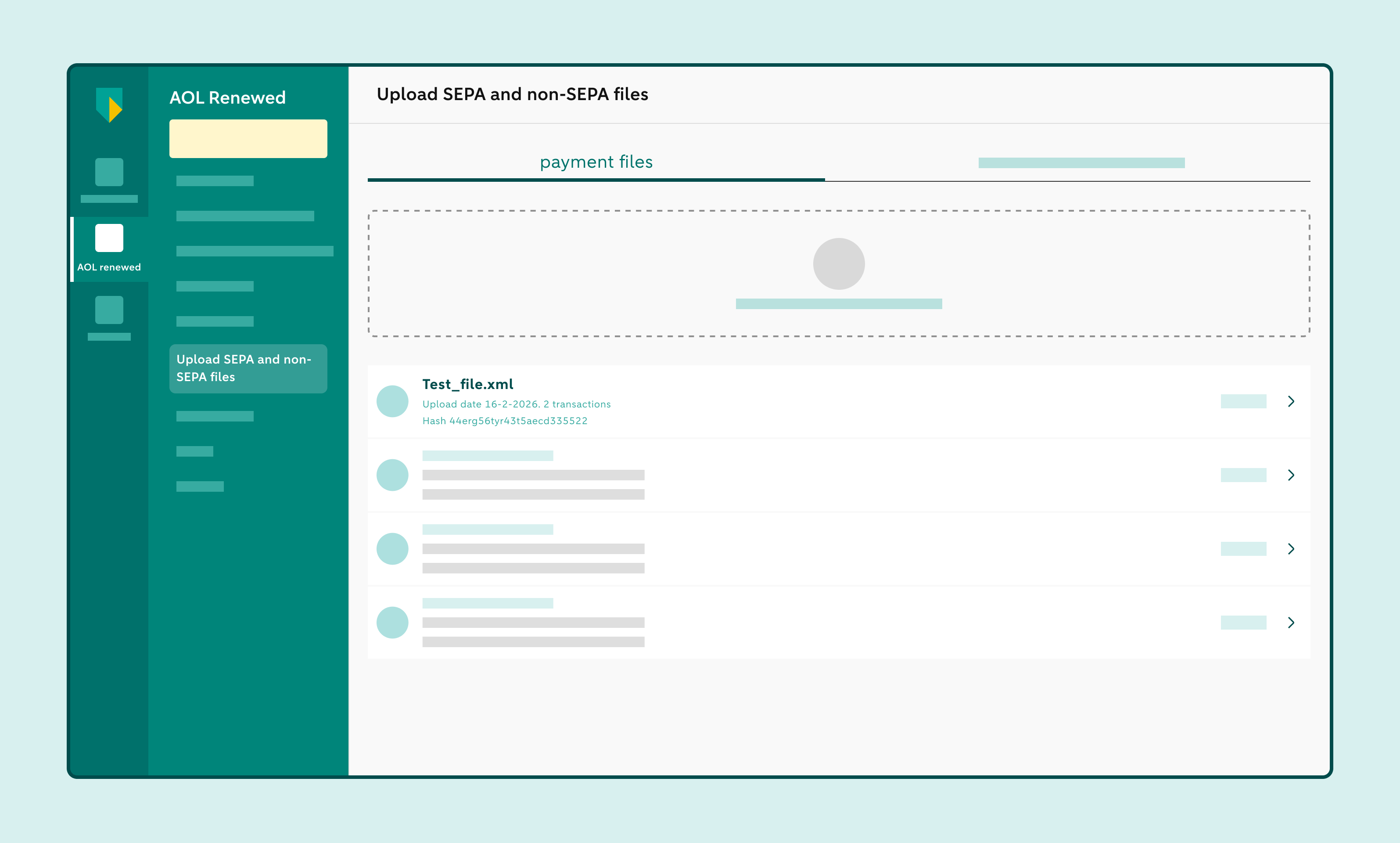
Click on Upload SEPA and non-SEPA files
Under Files with payments to be accepted, you can see the payment files that still need to be approved.
Click on the file you want to check
If the payment file contains multiple batches, you will first see an overview of the batches. Click on a batch to open it.
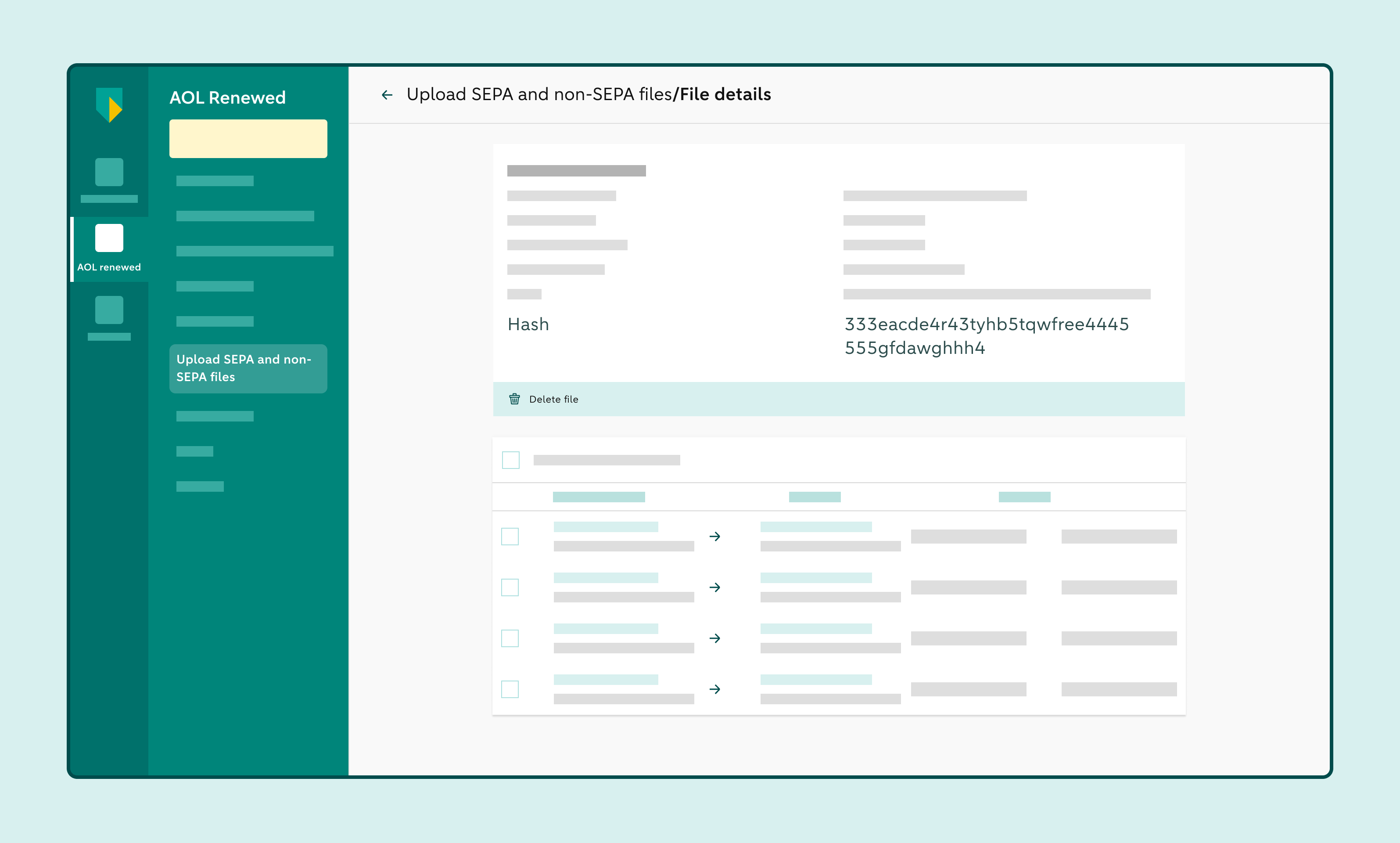
Check the hash
The hash allows you to verify that this is the correct batch that was created in your accounting system. At the bottom of the screen, you can see all transactions in the batch. Click on a transaction to view its details.
Check that all details are correct
On the right-hand side of the screen, you'll see all the details of the payment order.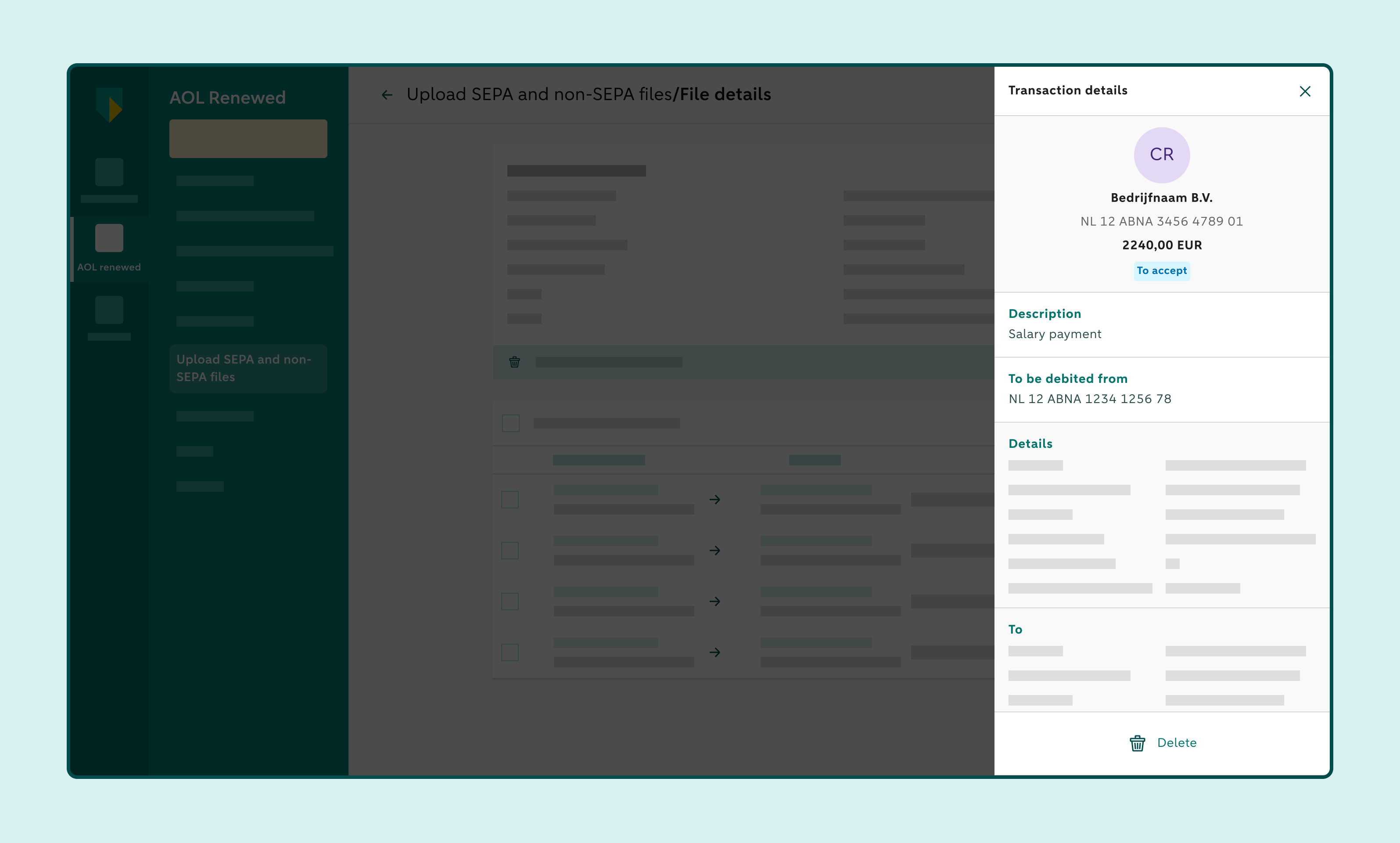
How to check a payment file after it has been submitted
Click on Upload SEPA and non-SEPA files
Under Accepted files, you can see the payment files that have already been submitted.
Click on the file you want to check
If the payment file contains multiple batches, you will first see an overview of the batches. Click on a batch to open it.
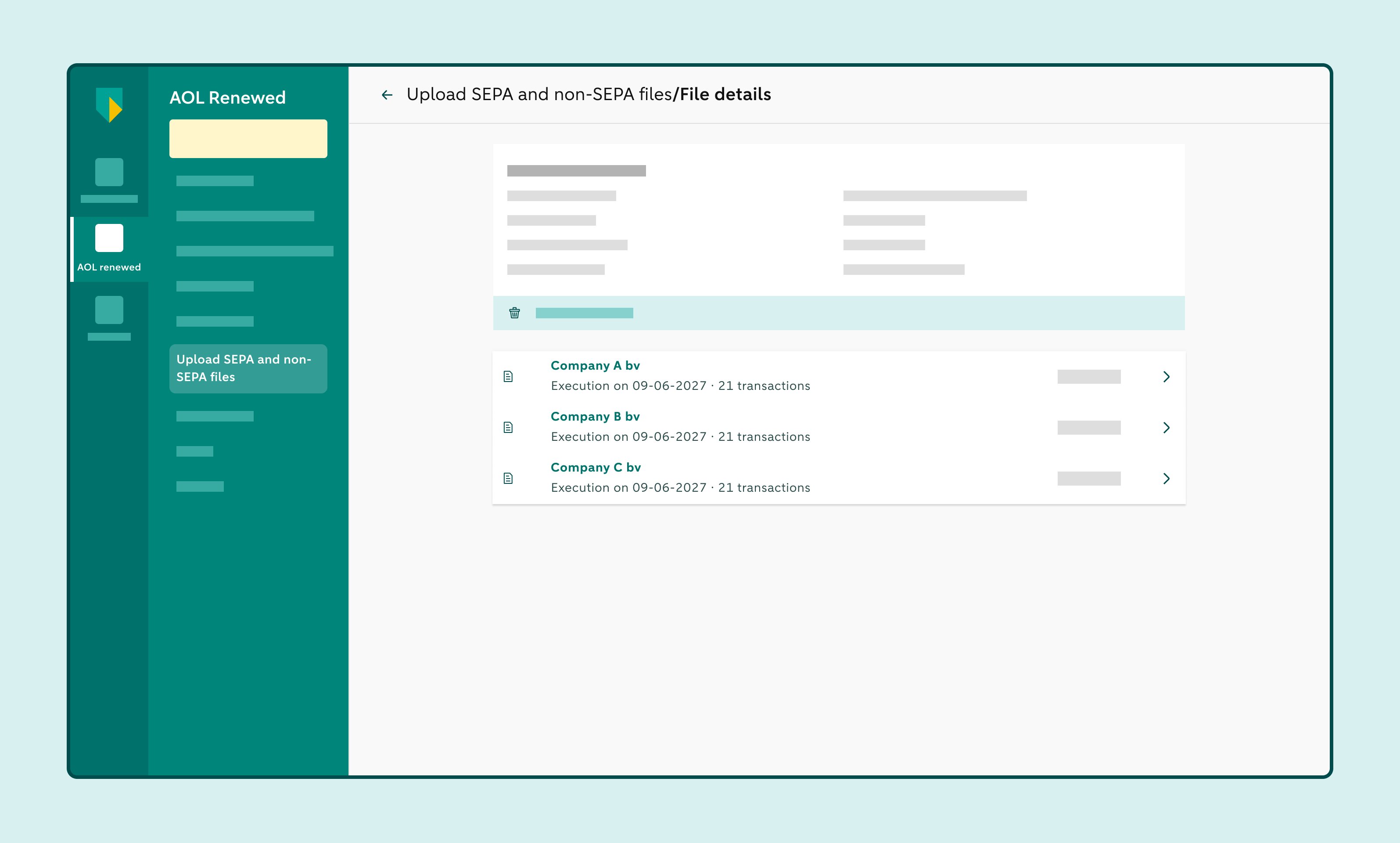
Check the hash
The hash allows you to verify that this is the correct batch that was created in your accounting system. At the bottom of the screen, you can see all transactions in the batch. Click on a transaction to view its details.
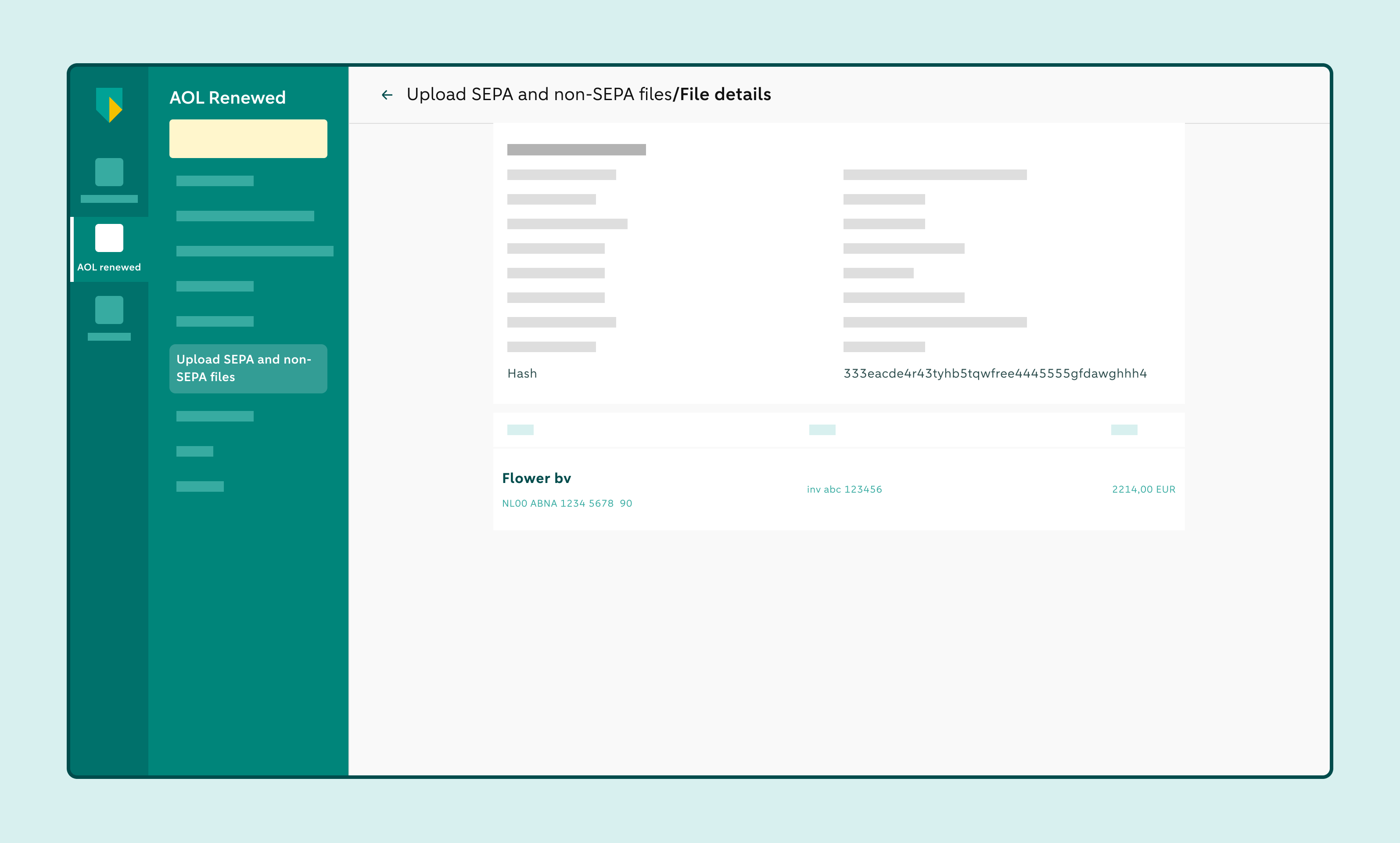
Check that all details are correct
On the right-hand side of the screen, you'll see all the details of the payment order.